AERIAL S2
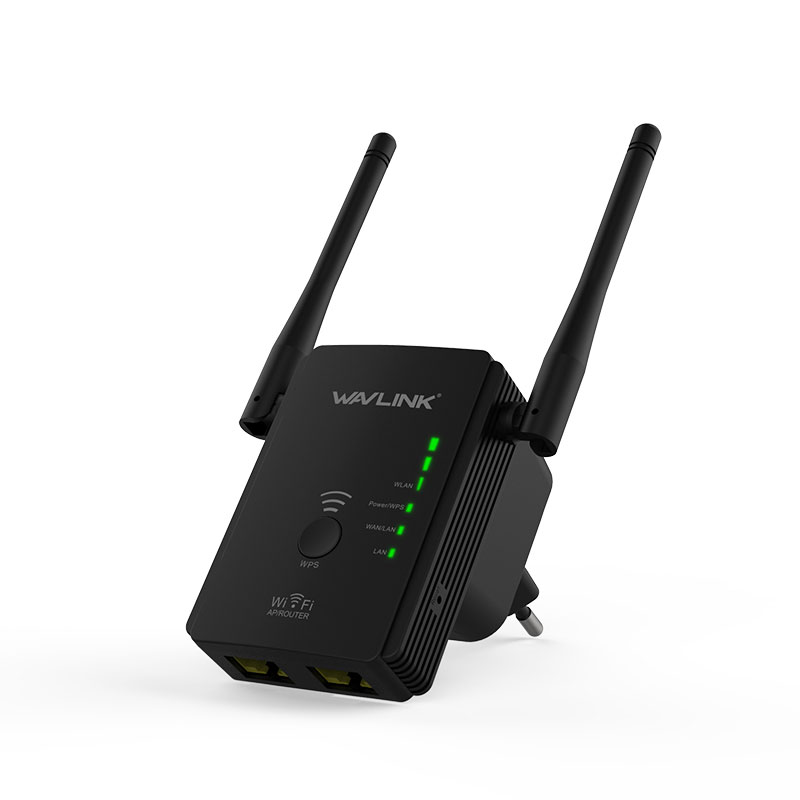
Model: WL-WN578R2
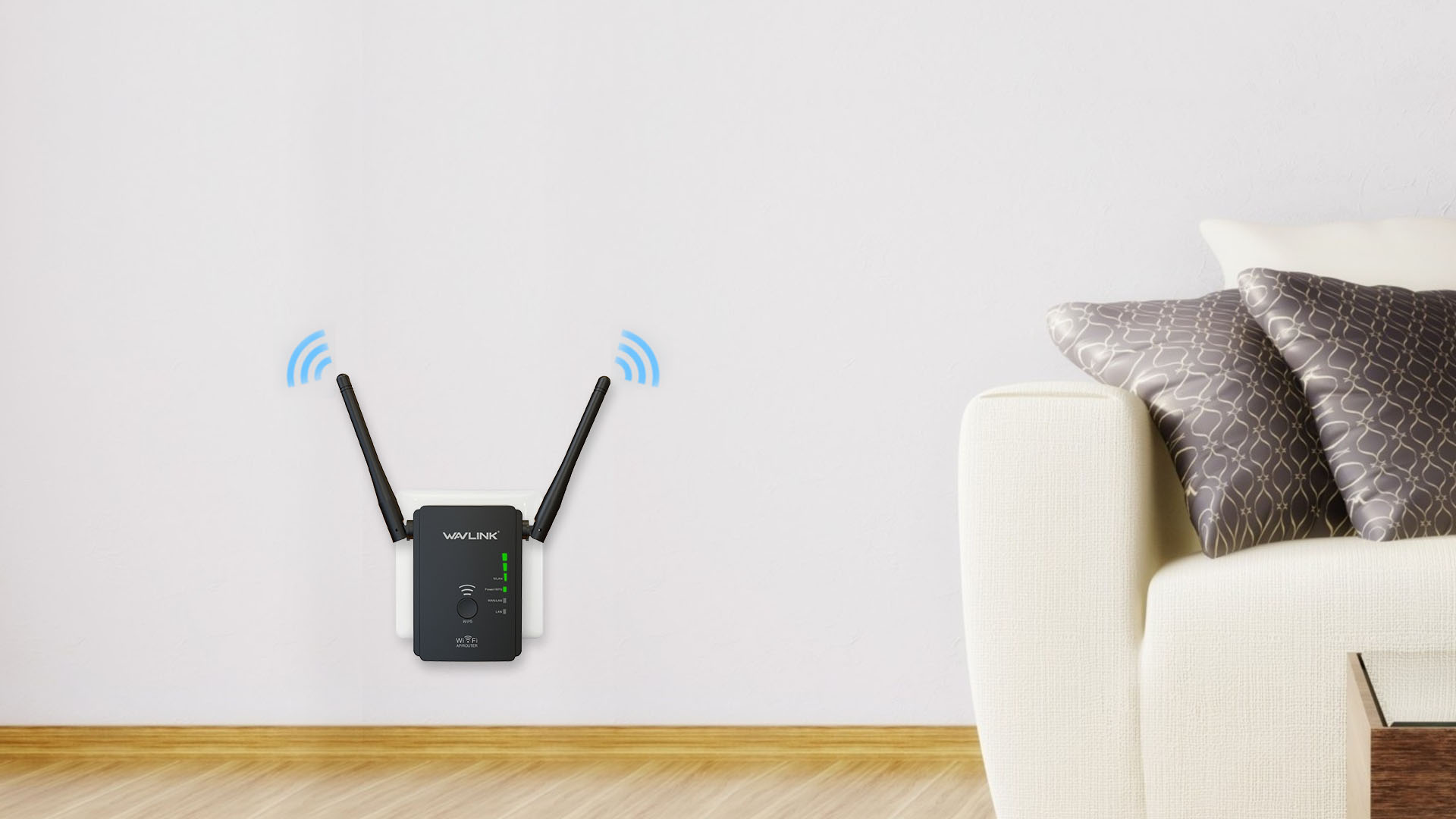
Fully expand your limited Wi-Fi coverage to the area your Wi-Fi devices can't be connected before. The Wi-Fi speed is fast enough to keep all of your connected devices running smoothly.
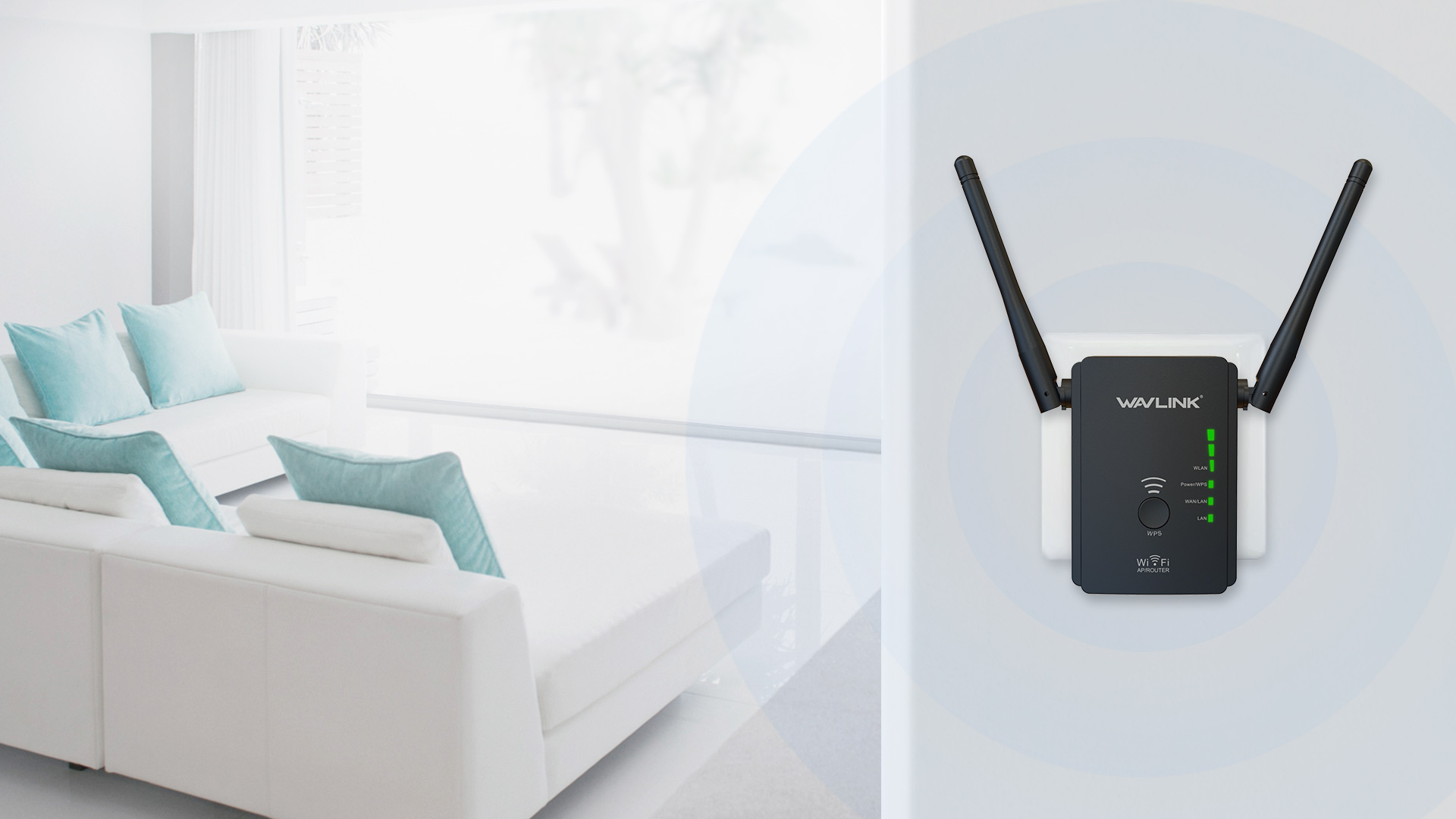
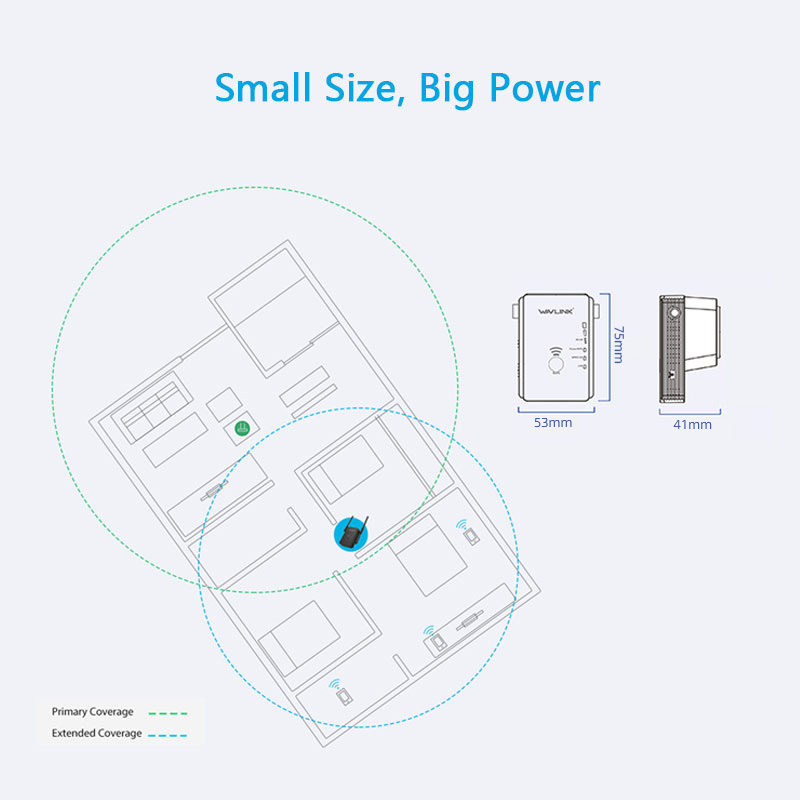
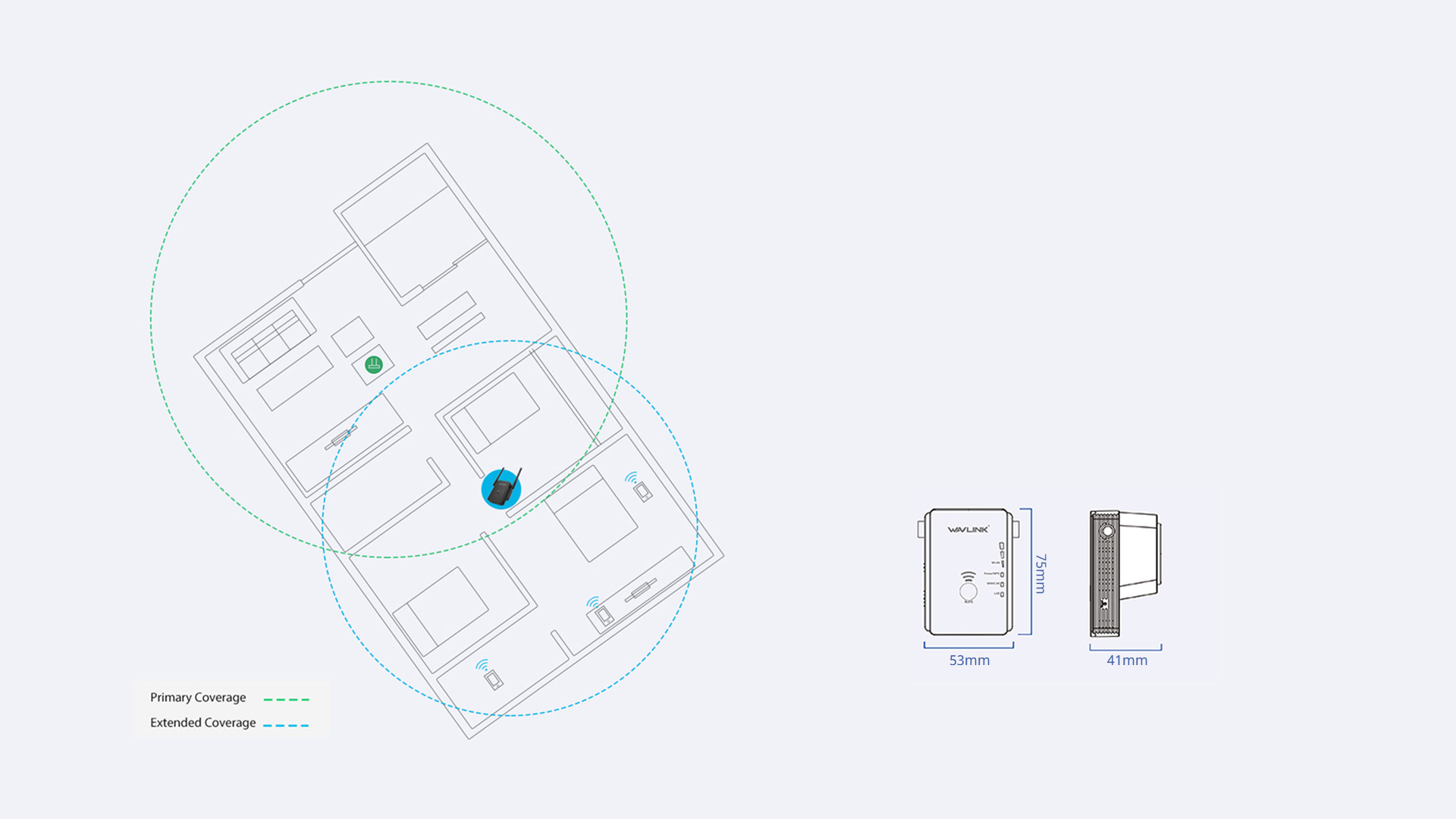
Despite its compact size, WN578R2 is strong enough to extend Wi-Fi coverage that standard router simply cannot reach. Supports wireless speed of up to 300Mbps and keeps all of your favorite devices running as fast as possible.
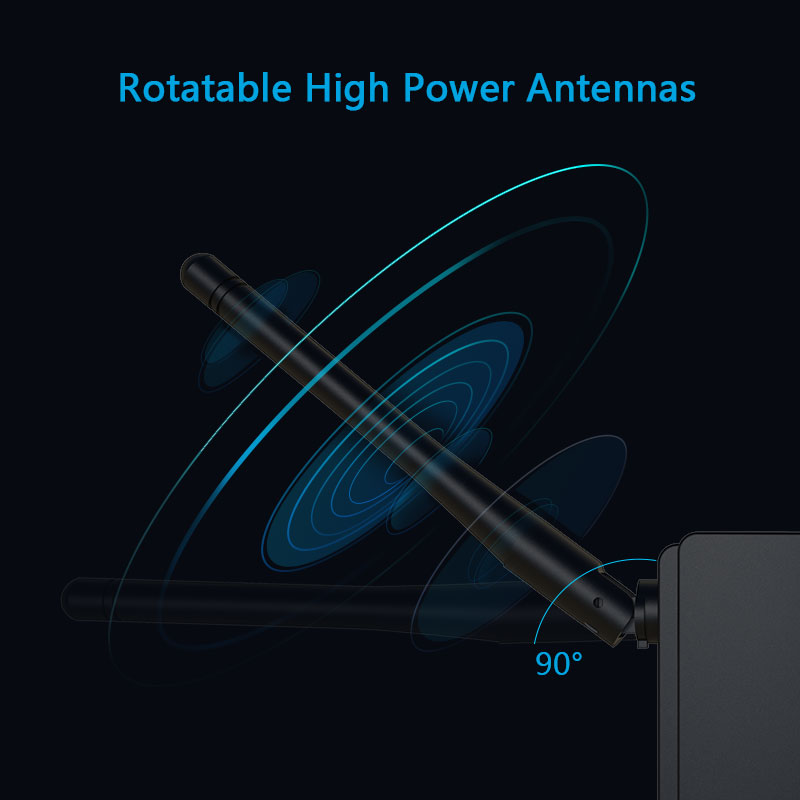
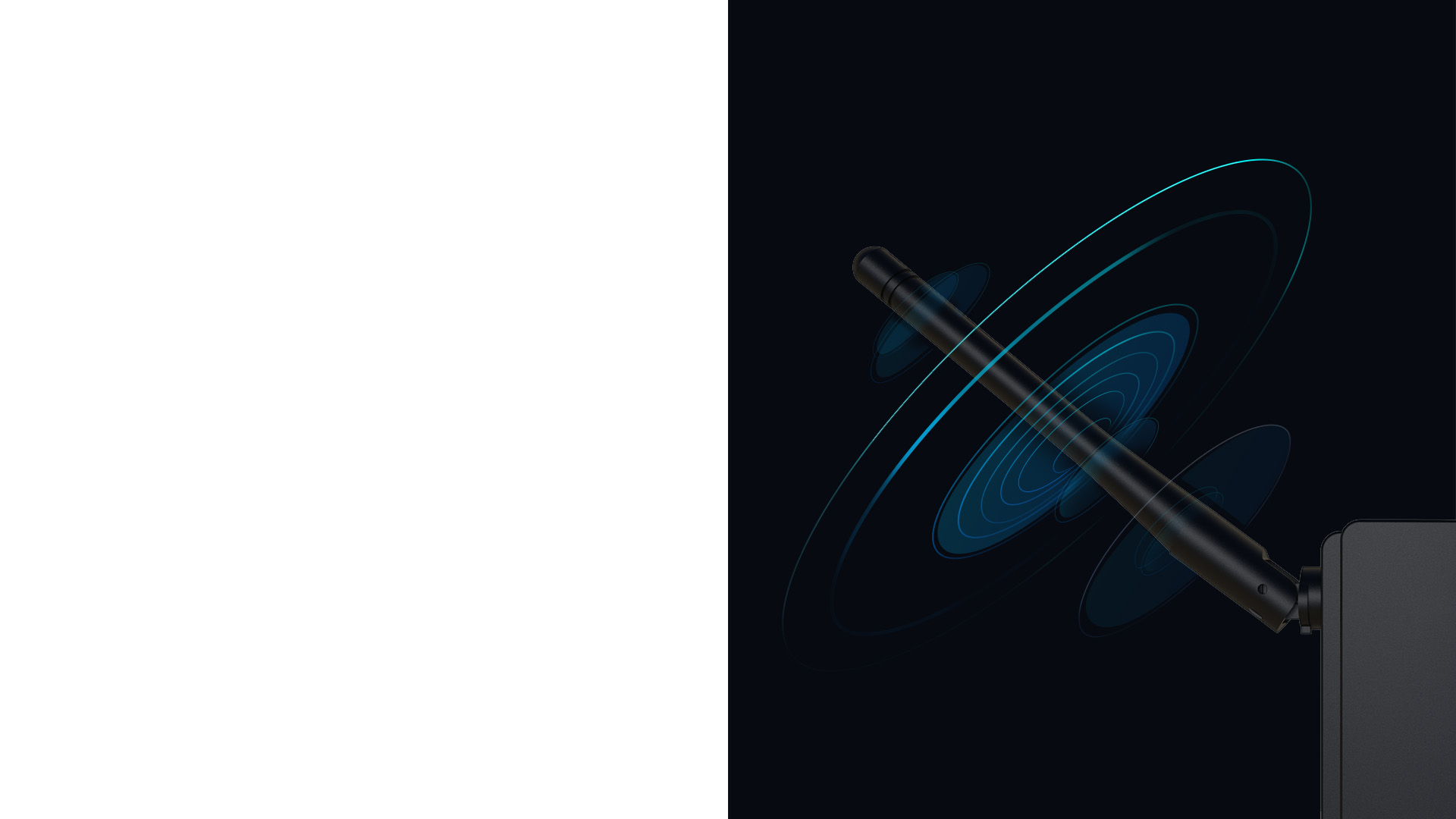
The two external antennas help to distinguish from other range extenders and ensure a stable wireless signal reaches where you need it most.
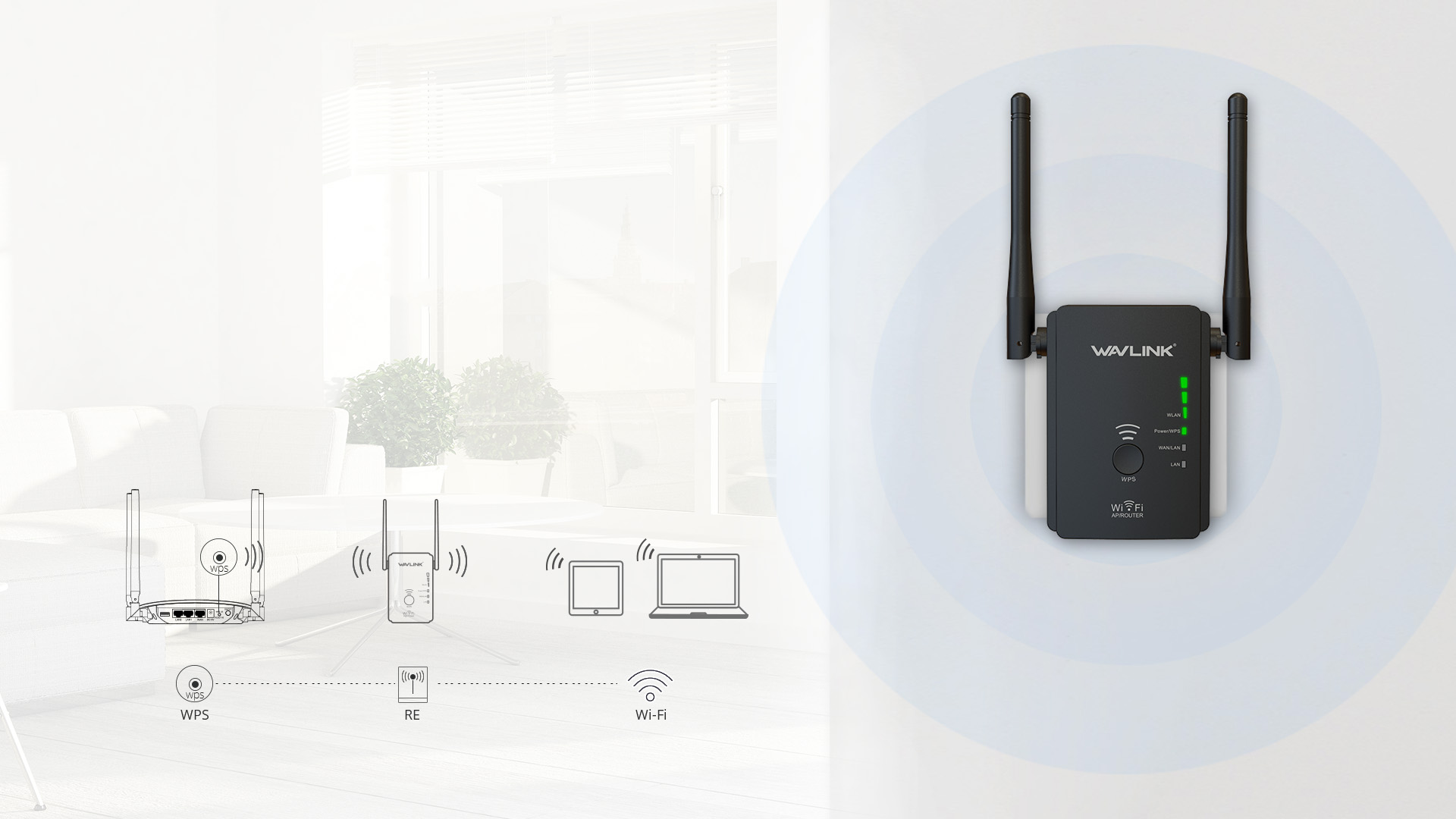
Press the WPS button on router, then press WPS button on the Range Extender to begin enjoying simple, expanded Wi-Fi.
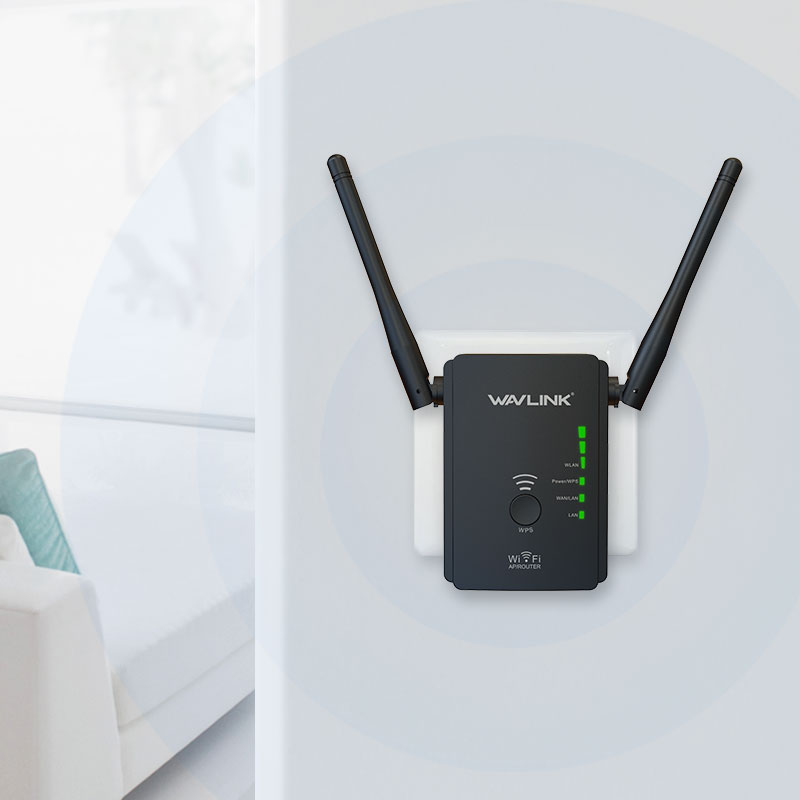
The Intelligent LED indicator provides a simple, color-coded indication, allowing you to find the perfect location.
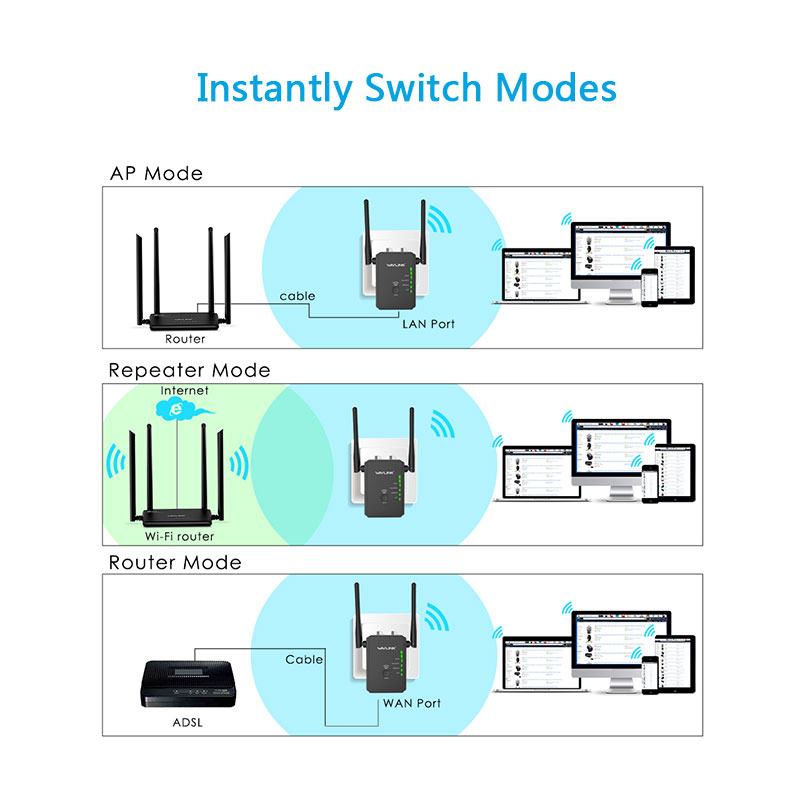
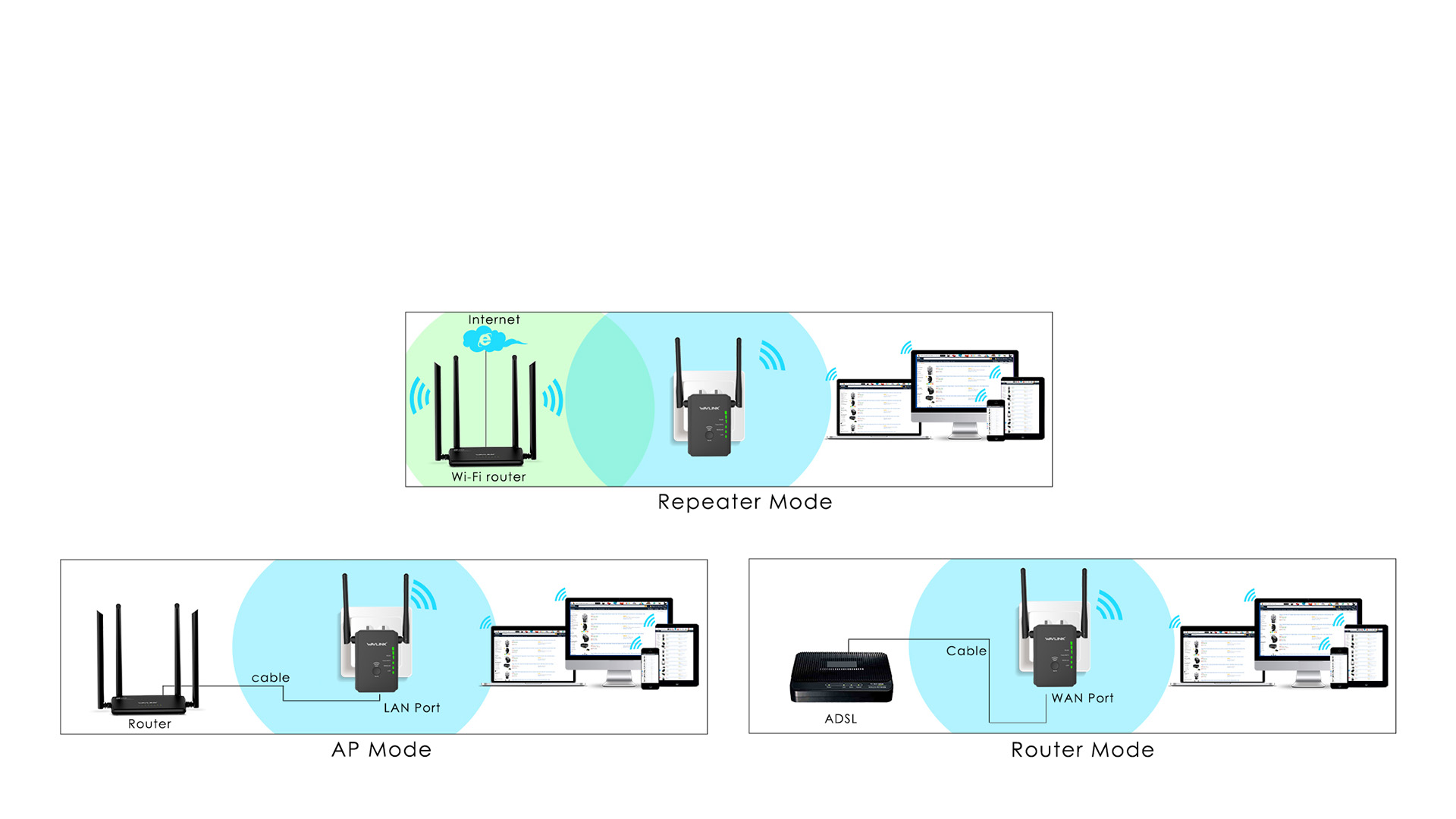
WL-WN578R2 brings Wi-Fi as the way you need it with its two selectable Work Modes. Thanks to the switch on the back of the range extenders , WL-WN578R2 can quickly and easily switch between router, repeater and access point (AP) modes.
WN578R2
1 x 10/100Mbps WAN/LAN
1 x 10/100Mbps LAN
1 x Reset button
1 x WPS button
1 x Mode Switch button
1 x Power On/Off button
1 x LAN
1 x WAN/LAN
1 x Power
3 x WLAN signal strength
16Mb
64Mb
3.5W
100-240 Va.c. 50/60Hz
75mm x 53mm x 41mm ( L x W x H )
IEEE 802.11a/b/g/n
IEEE 802.11n: Up to 300Mbps
IEEE 802.11g: Up to 54Mbps
IEEE 802.11b: Up to 11Mbps
2.4GHz
WPA-PSK/ WPA2-PSK encryption
2 x 3dBi Omni Directional Antennas
1 x Wi-Fi AP/Range Extender/Router
1 x RJ45 Ethernet Cable
1 x Quick Guide
1.If you can't log in the management when the device is in AP Mode, please check the IP address arranged by the upstream router, use this IP address to log in.
2.Make sure you have connected to the Wi-Fi of the device.
3.Please try to clean the cache of the browser.
4.Try to log in the management page via another browser.
5.Try to log in the management page via other devices.
6.If you still meet some problem,please be free to contact our support team.
Please reset the device by pressing the reset button for 6s when the device is powered on.
If you configure the wavlink device as repeater mode.
1.Please make sure you should enter the correct wifi password of the host router when you try to repeat the wifi signal.
2.Please make sure the dhcp of the host router is enabled.
3.Make sure the mac filter of the host router is not enabled.(Otherwise the wavlink device might be blocked)
If you configure the wavlink device as ap mode.
1.Please make sure the dhcp of the host router is enabled.
2.Make sure the mac filter of the host router is not enabled.(Otherwise the wavlink device might be blocked)
3.Please connect the pc to the modem/host router via Ethernet cable directly and check if you could get internet.(To rule out the problem of the modem/router)
Please press the reset button for 6s when the device is powered on.
No the device could not repeat the signal with captive portal.
Actually the device work as the wifi ranger extender,it could help help the user to get a larger wifi coverage.But it could not increase the internet speed from the host router.And the internet speed should be lower than the speed from the host router.
And there are some methods which might be helpful to help you get better performance in repeater mode.
1.Please try to adjust the position of the wavlink device.
And it is better to avoid too many obstacle like wall between the host router and wavlink device and try to avoid too many obstacle between the wavlink device and the target area.
2.Try to repeat the 5g signal of your host router,if there is no 5G signal.
If you still meet some problem,please be free to contact our support team.
Get the Scoop First
Subscribe to our official website to receive exclusive first-hand news and stay up-to-date on our new product releases and promotions!