Model: WL-UG75PD5-3H2D2
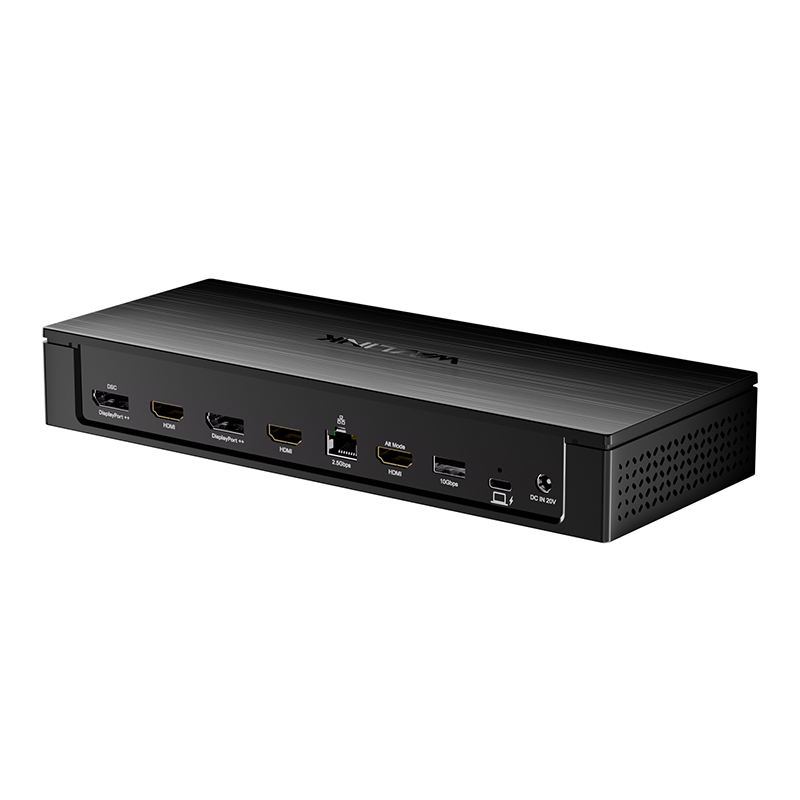
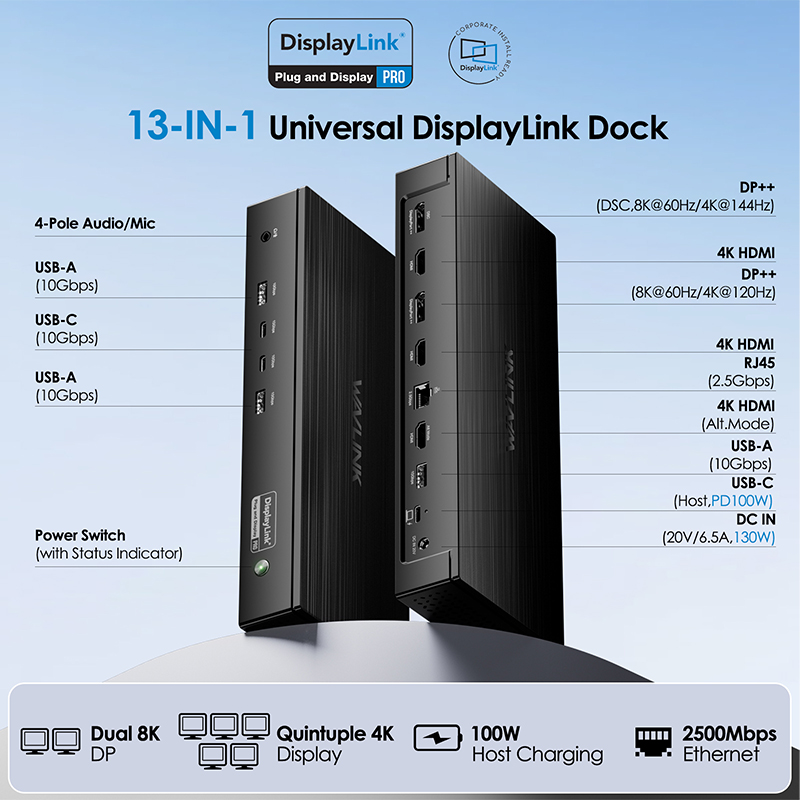
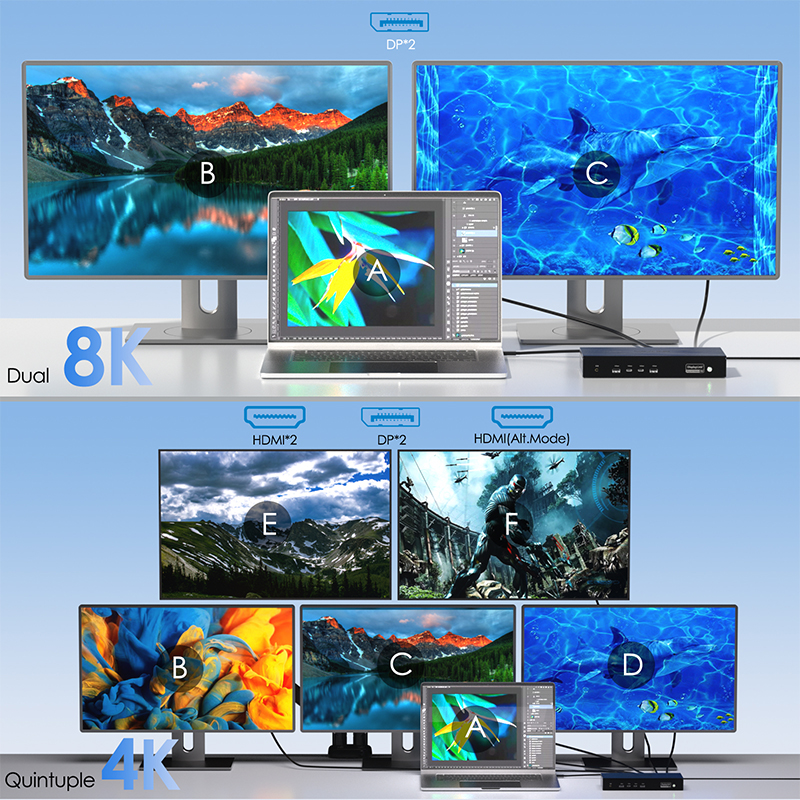
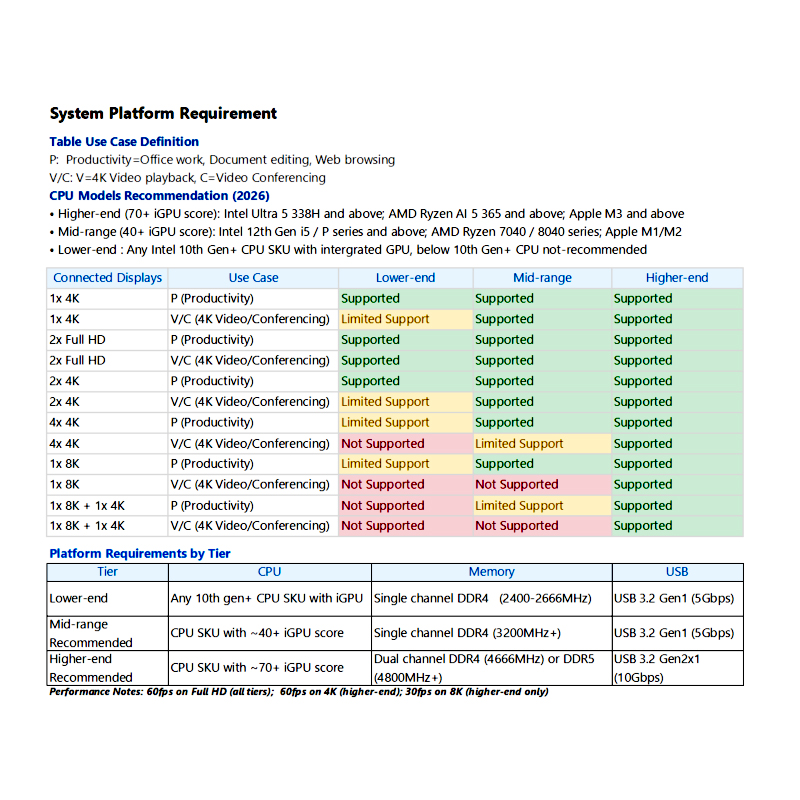
- 2 x DisplayPort 1.4 and 3 x HDMI ports support max dual 8K or quintuple 4K display.
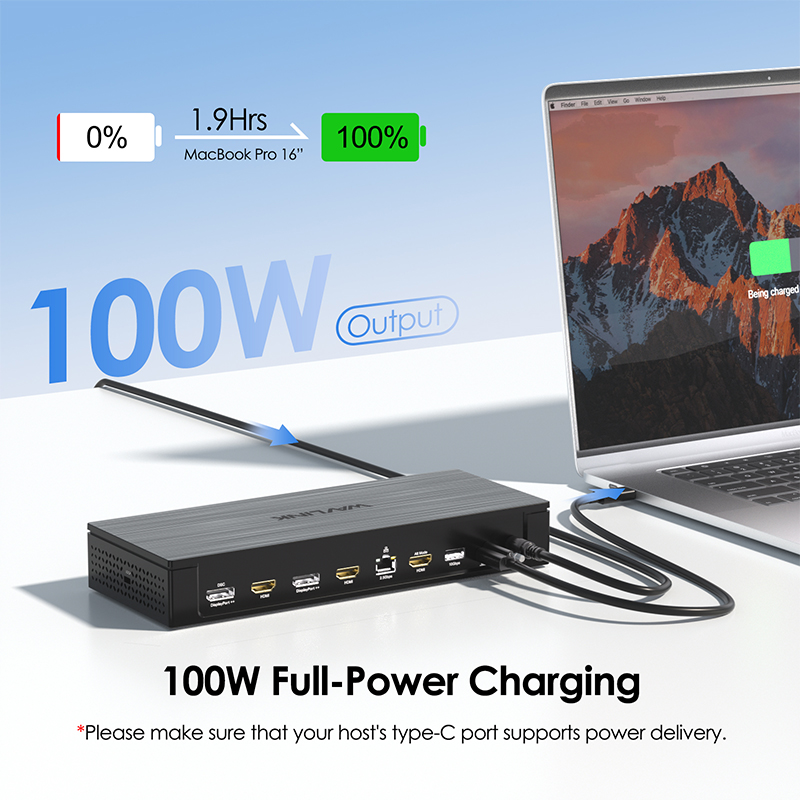
- 1 x Type-C UFP supports PD 100W upstream charging for laptop.
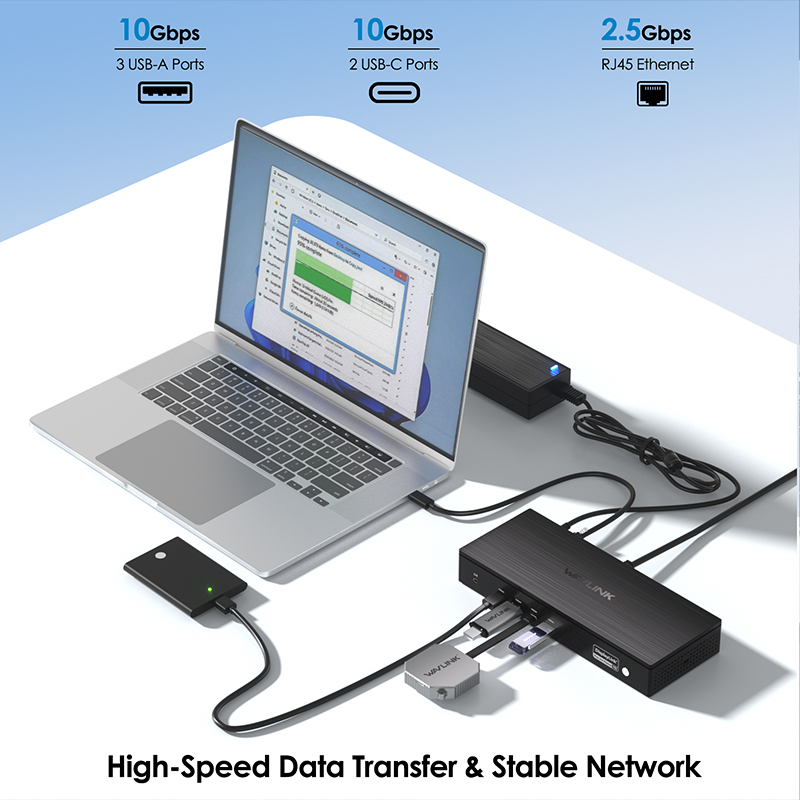
- 3 x USB 3.1 Type-A (10G) ports extend more connectivity to USB devices.
- 2 x USB 3.1 Type-C (10G) ports extend more connectivity to USB devices.
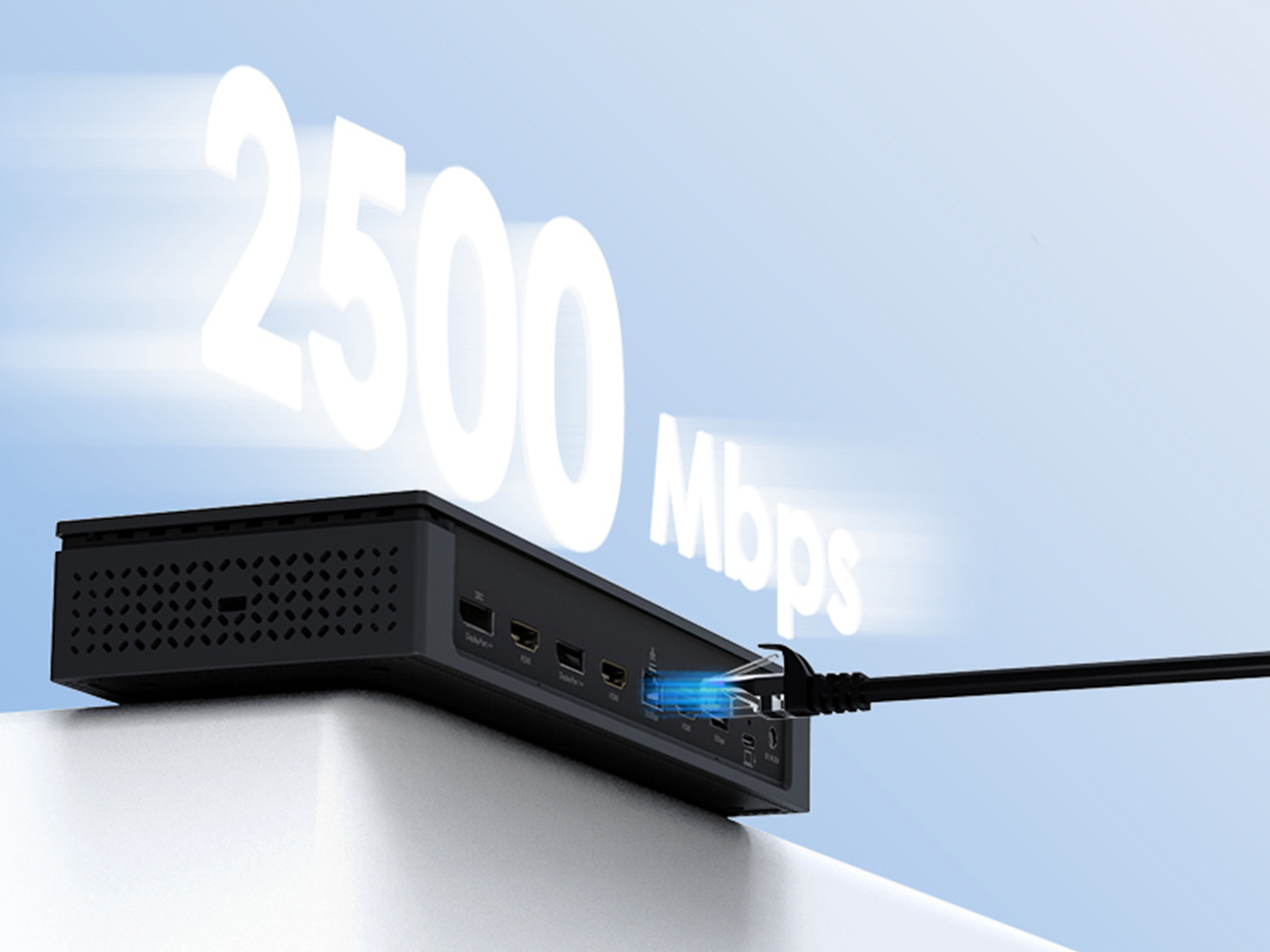
- 1 x RJ45 Ethernet port supports high-speed data transmission.
- 1 x Kensington lock for security.
- 1 x Combo Audio/Mic port.
Empower Your Workspace with Seamless Connectivity and Rapid PD 100W Upstream Charging!
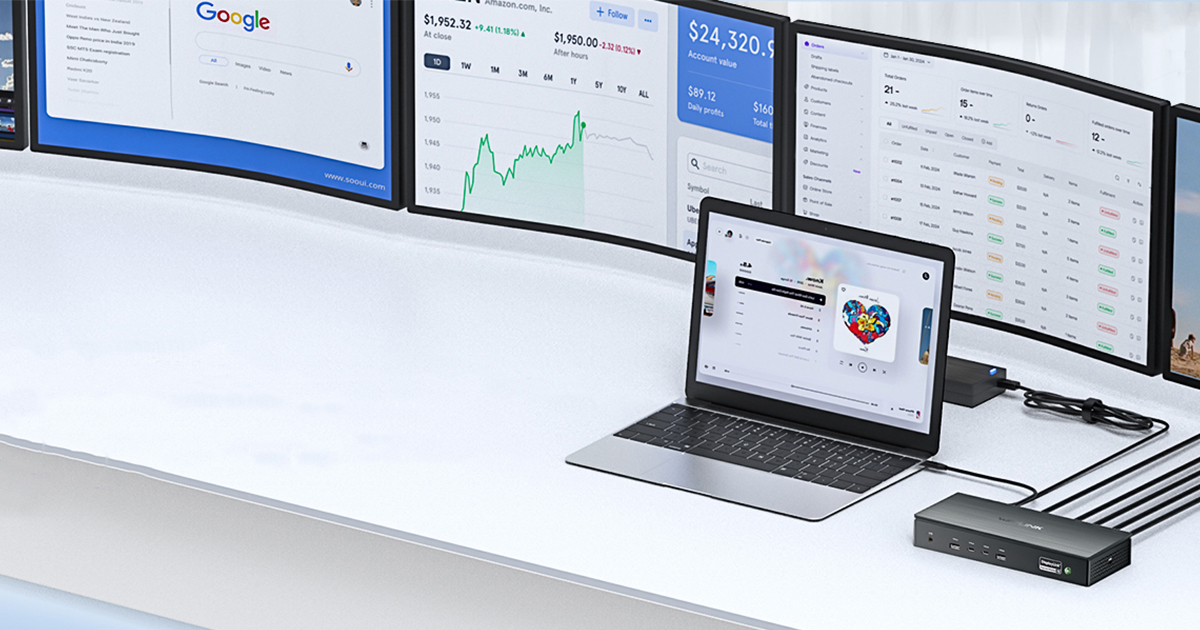
Simplify your workflow, stay connected, and be ready to work anytime.
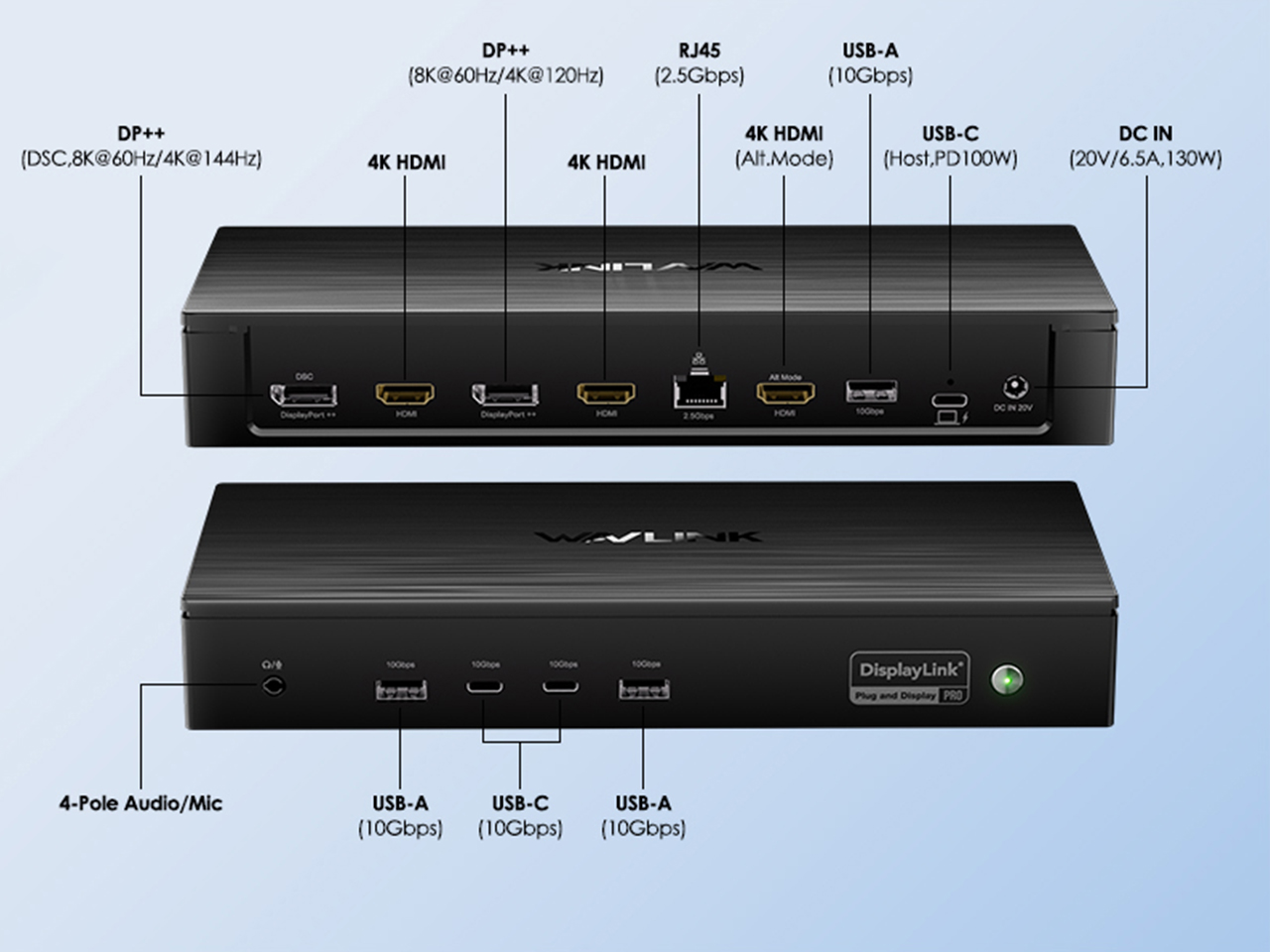
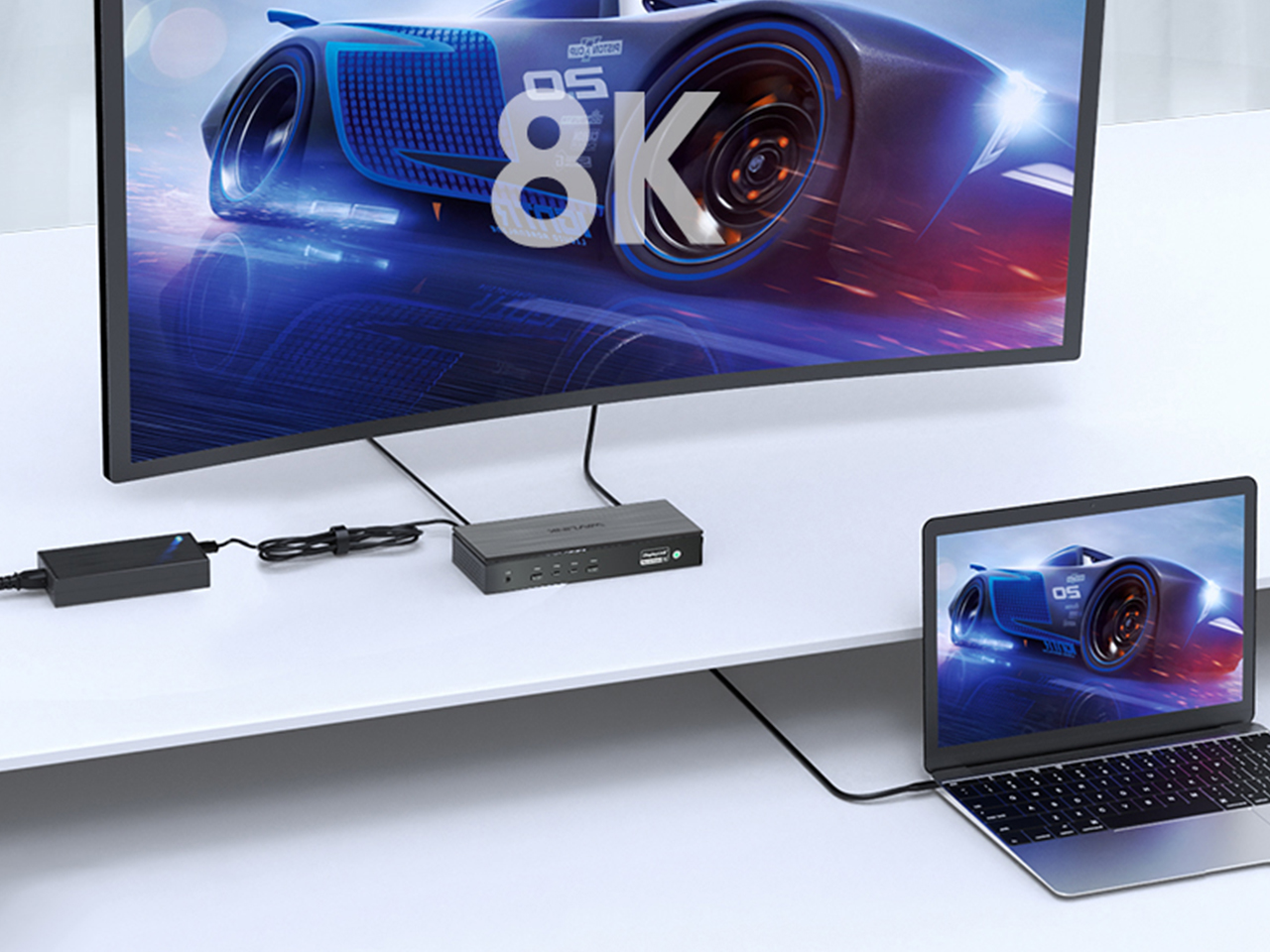
Effortlessly connect multiple high-resolution monitors for enhanced productivity.
Ensures seamless compatibility with various operating systems, enabling efficient multi-display multitasking.
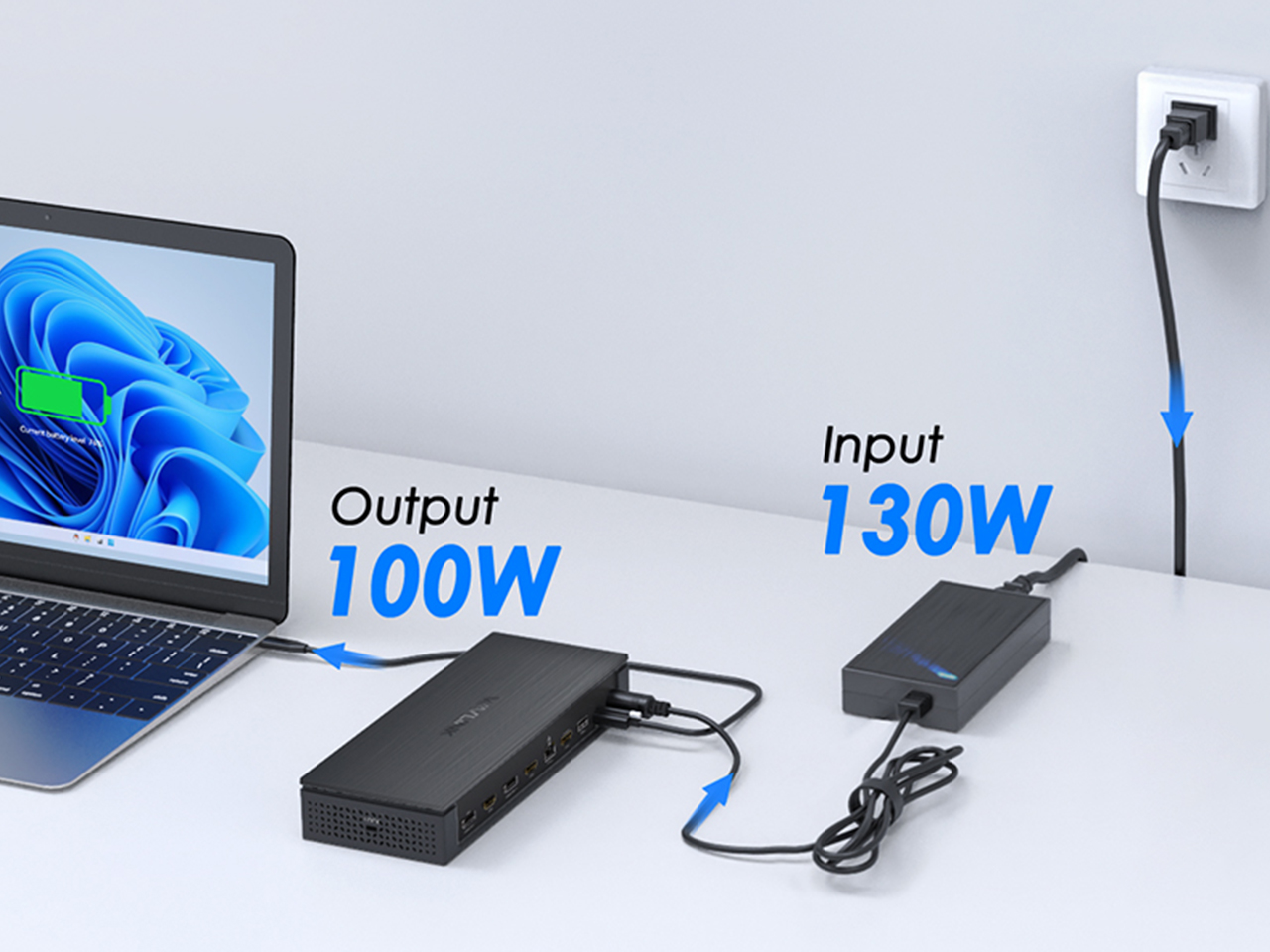
Comes with a 130W power adapter. Host USB-C port charges laptop up to 100W, ensuring all-day power. No more low-battery worries.
Delivers stable, lag-free wired network performance with 2.5Gbps high-speed data transfer.

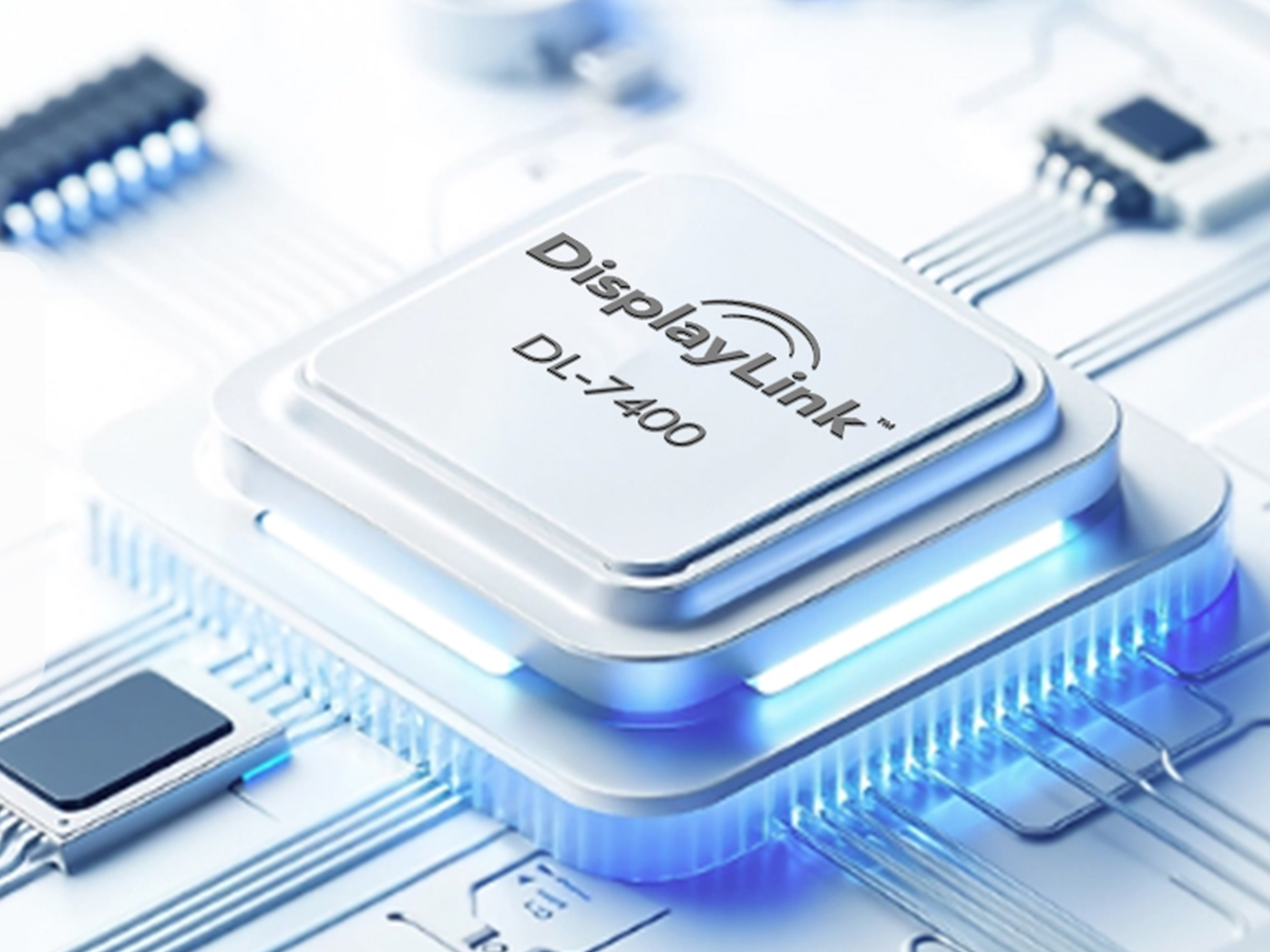
Please ensure that the DisplayLink driver for the dock is installed.
For macOS: Make sure you have installed the DisplayLink Manager App and granted permission for Screen Recording.
You can download the driver here :
DisplayLink macOS Software for Downloads Section | Synaptics
Please follow the steps below:
1. Disconnect the dock from your computer and unplug the power cable to fully power it off. Keep it disconnected until the final step.
2. Uninstall any DisplayLink software from Control Panel > Programs and Features (if present).
3. Download and run the DisplayLink Cleaner Tool:
DisplayLink Installation Cleaner for Windows | Synaptics
4. Restart your computer (even if not prompted).
5. Download and install the latest DisplayLink driver:
Windows Driver Downloads for Downloads Section | Synaptics
6. Reconnect the dock’s power first, then connect the dock to your computer.
If the device is not detected during installation, click “Skip” to complete the process, then restart your system again.
macOS requires users to grant Screen Recording permission for the DisplayLink driver to function properly. The DisplayLink Manager App does not send any information to Wavlink or DisplayLink/Synaptics, so there is no need to worry.
1.The docking station does not support HDCP, so protected content from services like Apple TV, Hulu, and Netflix cannot be played while the dock is connected. This is expected behavior. Please disconnect the dock when playing these videos.
2.Alternatively, you can try :
1) Open Google Chrome settings.
2) Click on "Advanced" and select "System."
3) Disable "Use hardware acceleration when available"
4) Select "Relaunch" to activate the new settings.
Please use the USB-C to USB-A cable to connect the dock to your laptop.
This will prevent the dock from supplying power.
Top
Get the Scoop First
Subscribe to our official website to receive exclusive first-hand news and stay up-to-date on our new product releases and promotions!