WAVLINK Universal DisplayLink Docking Station, Triple 4K USB C USB 3.0 Laptop Dock for M1 M2 M3 Mac and Windows, 15 In 1 with 3 HDMI, 2 DP, RJ45, Audio/Mic, SD/TF, 5 USB Ports, Does Not Charge Laptops
  • WAVLINK Universal DisplayLink Docking Station, Triple 4K USB C USB 3.0 Laptop Dock for M1 M2 M3 Mac and Windows, 15 In 1 with 3 HDMI, 2 DP, RJ45, Audio/Mic, SD/TF, 5 USB Ports, Does Not Charge Laptops 1
  • WAVLINK Universal DisplayLink Docking Station, Triple 4K USB C USB 3.0 Laptop Dock for M1 M2 M3 Mac and Windows, 15 In 1 with 3 HDMI, 2 DP, RJ45, Audio/Mic, SD/TF, 5 USB Ports, Does Not Charge Laptops 2
  • WAVLINK Universal DisplayLink Docking Station, Triple 4K USB C USB 3.0 Laptop Dock for M1 M2 M3 Mac and Windows, 15 In 1 with 3 HDMI, 2 DP, RJ45, Audio/Mic, SD/TF, 5 USB Ports, Does Not Charge Laptops 3
  • WAVLINK Universal DisplayLink Docking Station, Triple 4K USB C USB 3.0 Laptop Dock for M1 M2 M3 Mac and Windows, 15 In 1 with 3 HDMI, 2 DP, RJ45, Audio/Mic, SD/TF, 5 USB Ports, Does Not Charge Laptops 4
  • WAVLINK Universal DisplayLink Docking Station, Triple 4K USB C USB 3.0 Laptop Dock for M1 M2 M3 Mac and Windows, 15 In 1 with 3 HDMI, 2 DP, RJ45, Audio/Mic, SD/TF, 5 USB Ports, Does Not Charge Laptops 5

WAVLINK Universal DisplayLink Docking Station, Triple 4K USB C USB 3.0 Laptop Dock for M1 M2 M3 Mac and Windows, 15 In 1 with 3 HDMI, 2 DP, RJ45, Audio/Mic, SD/TF, 5 USB Ports, Does Not Charge Laptops

Model: WL-UG69DK13

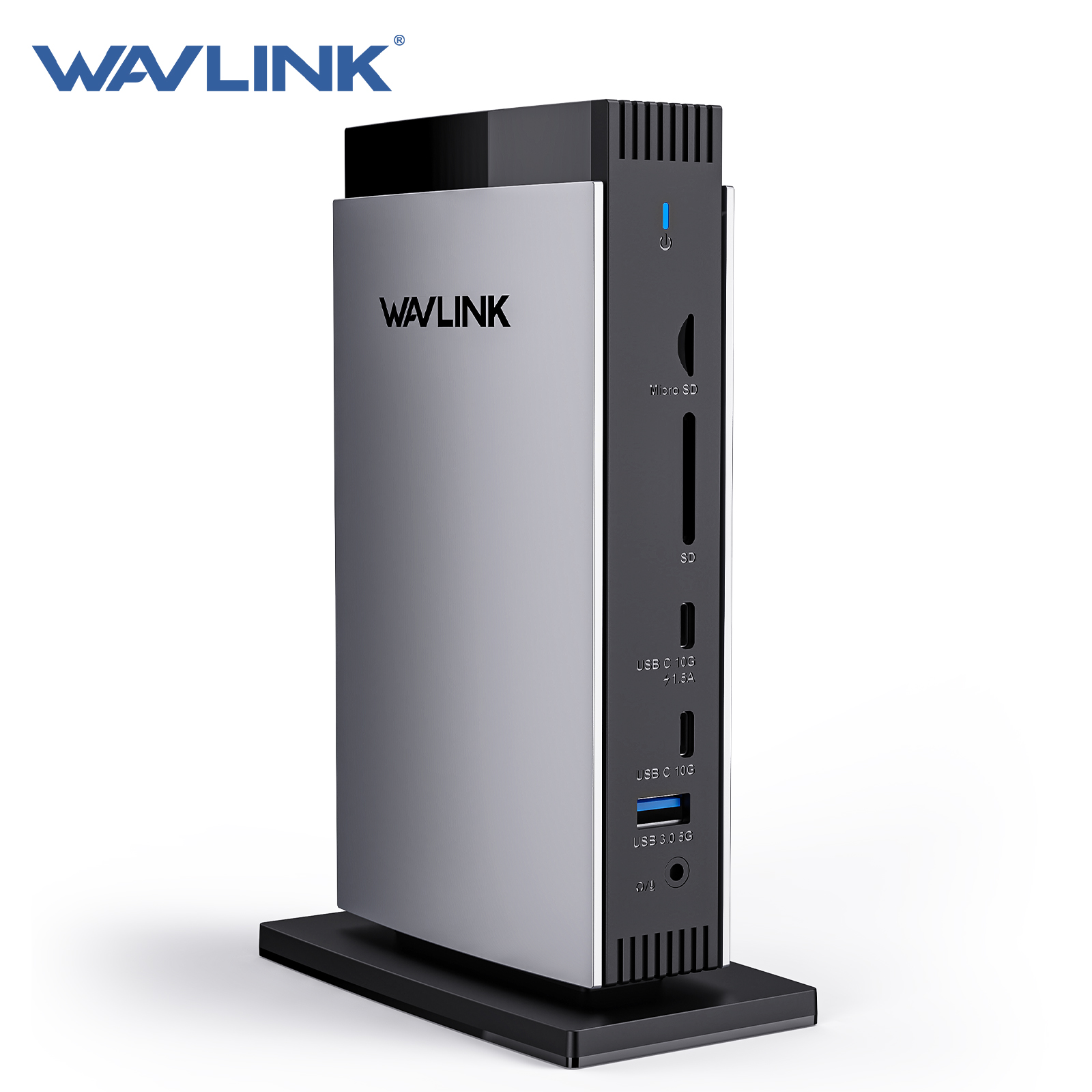
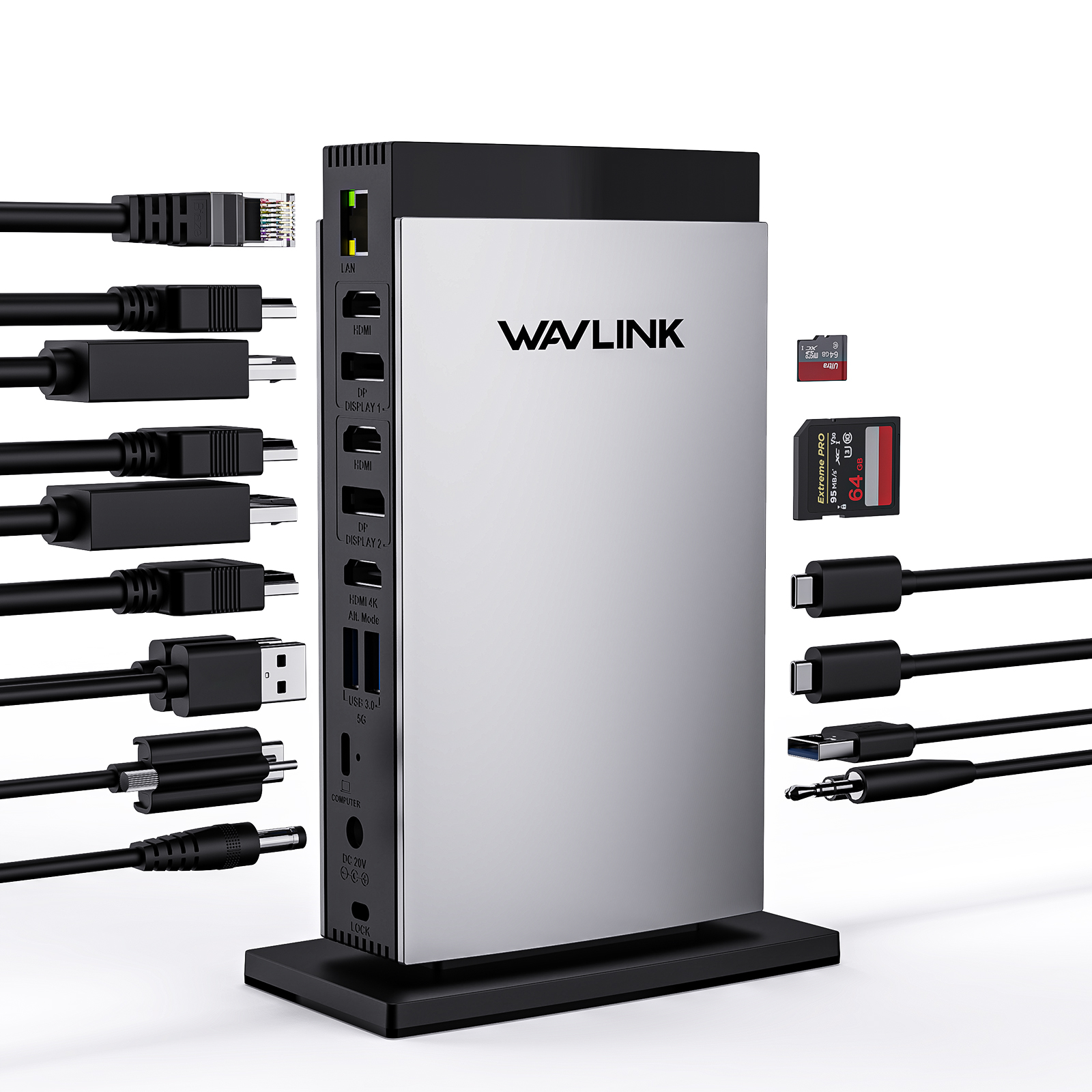
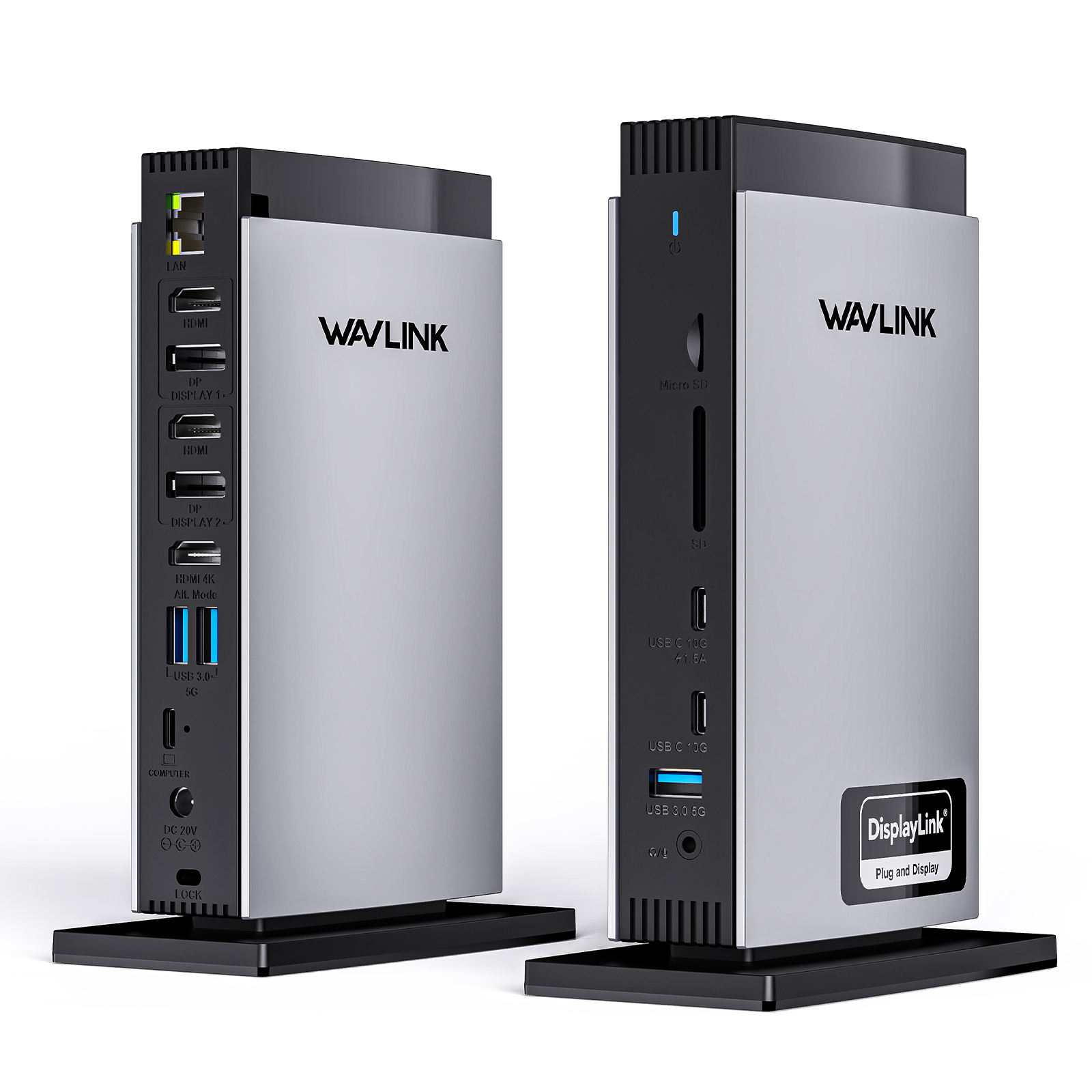
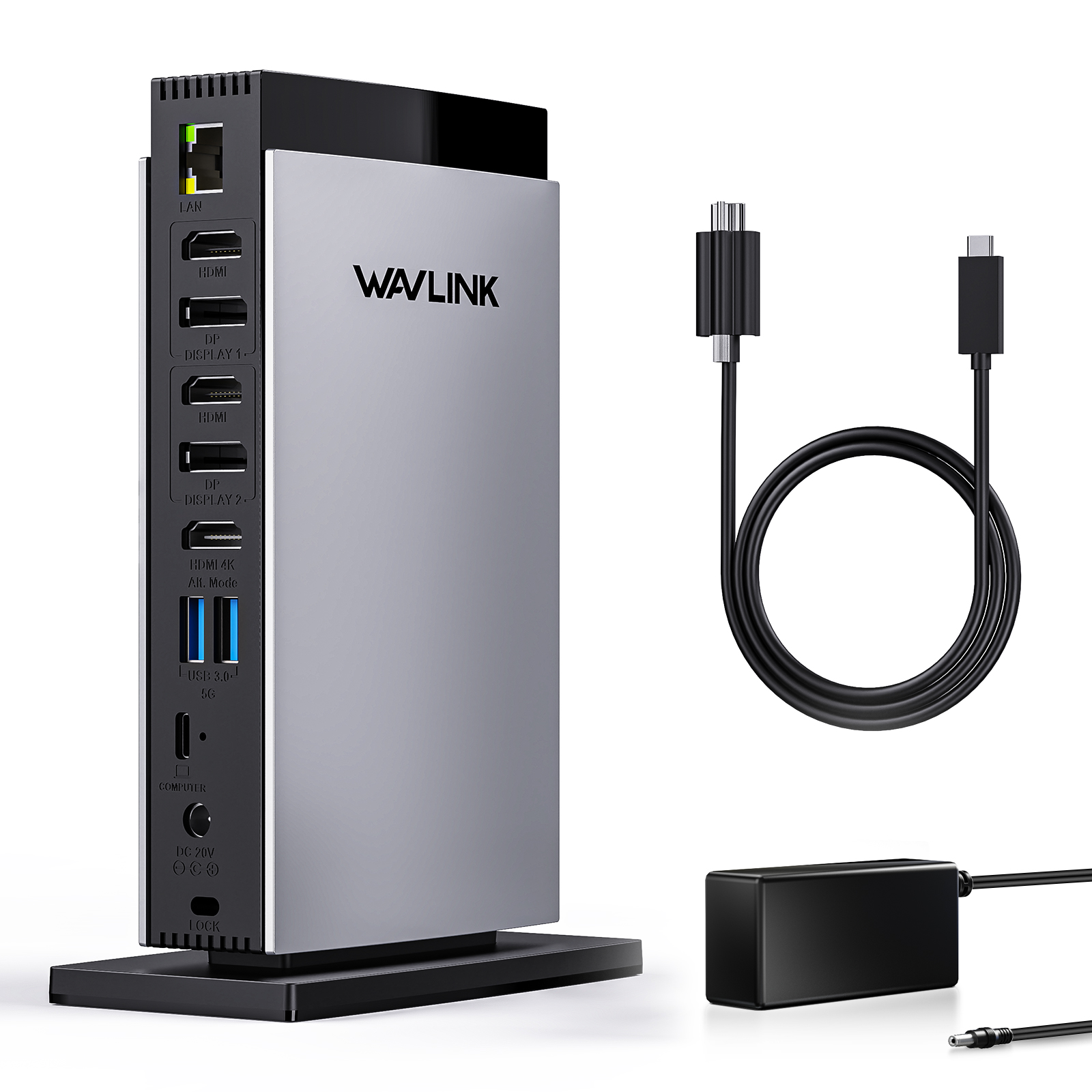
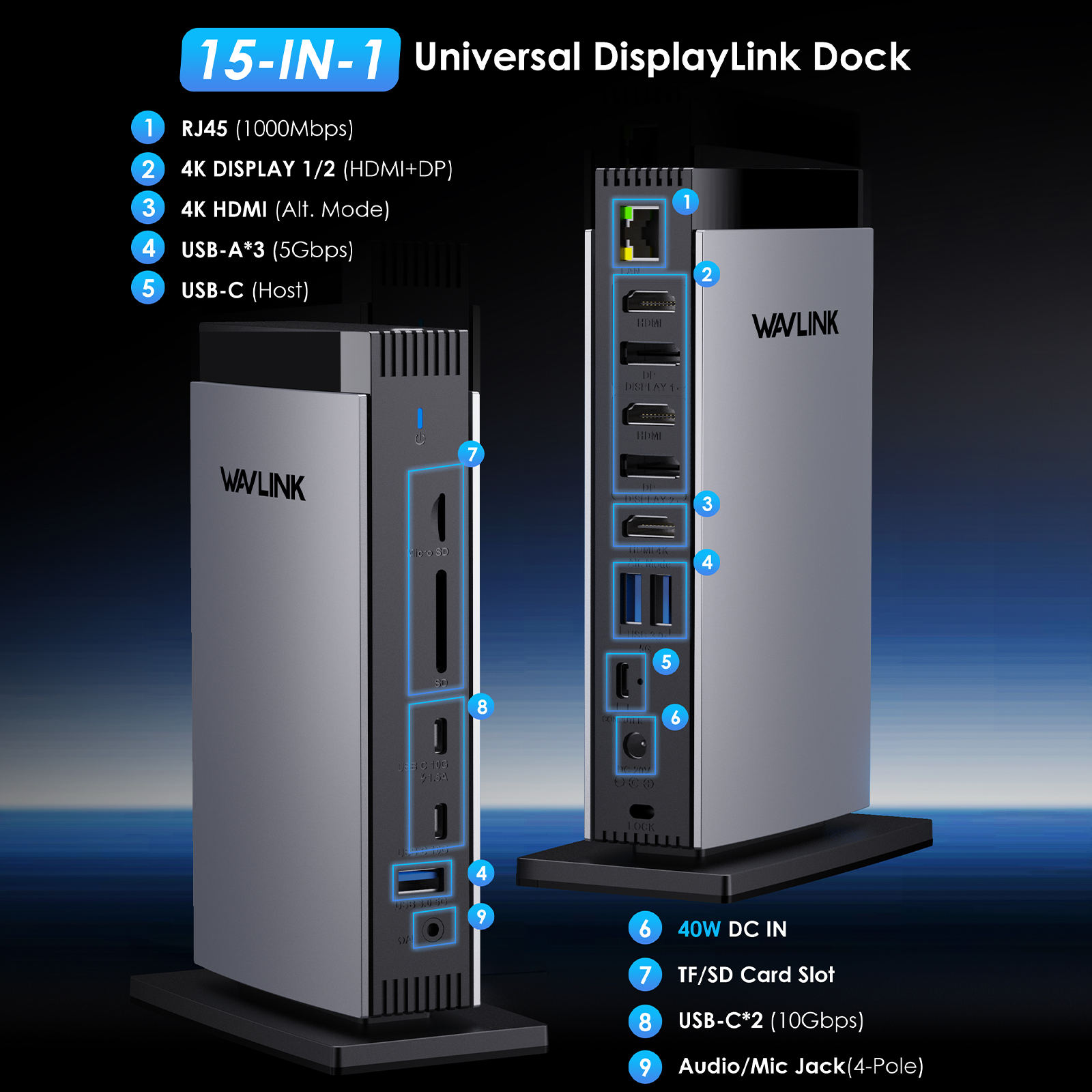
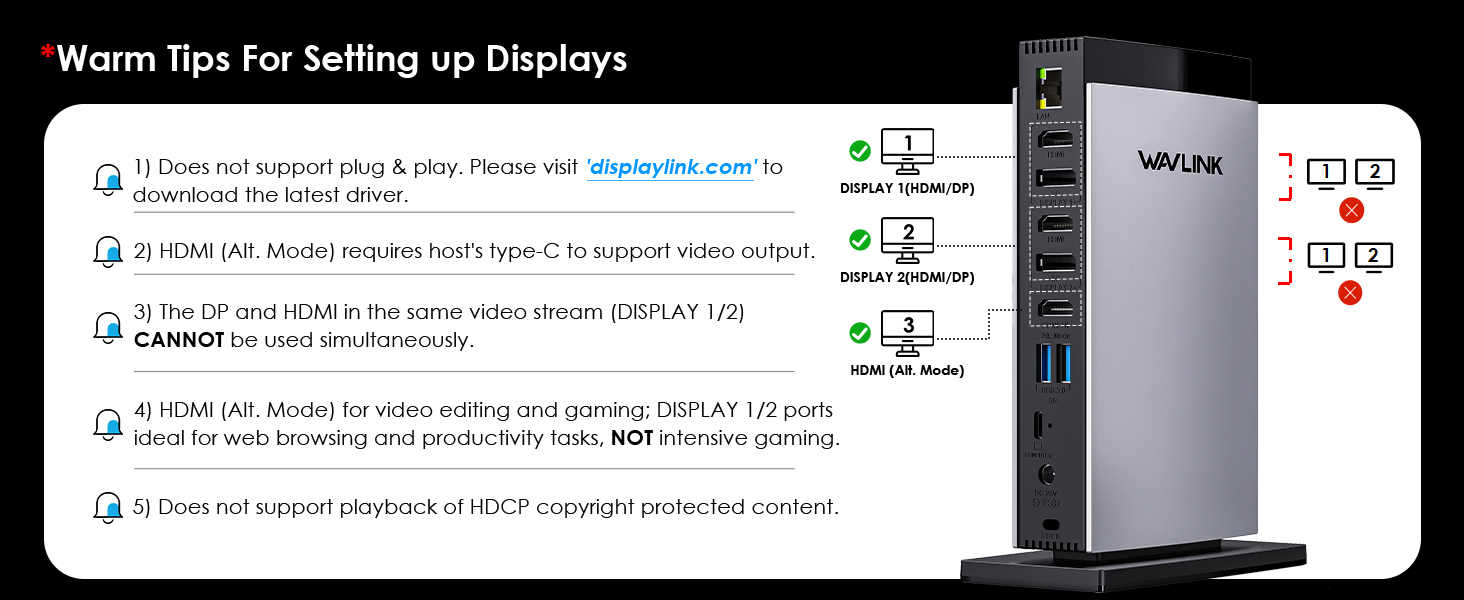
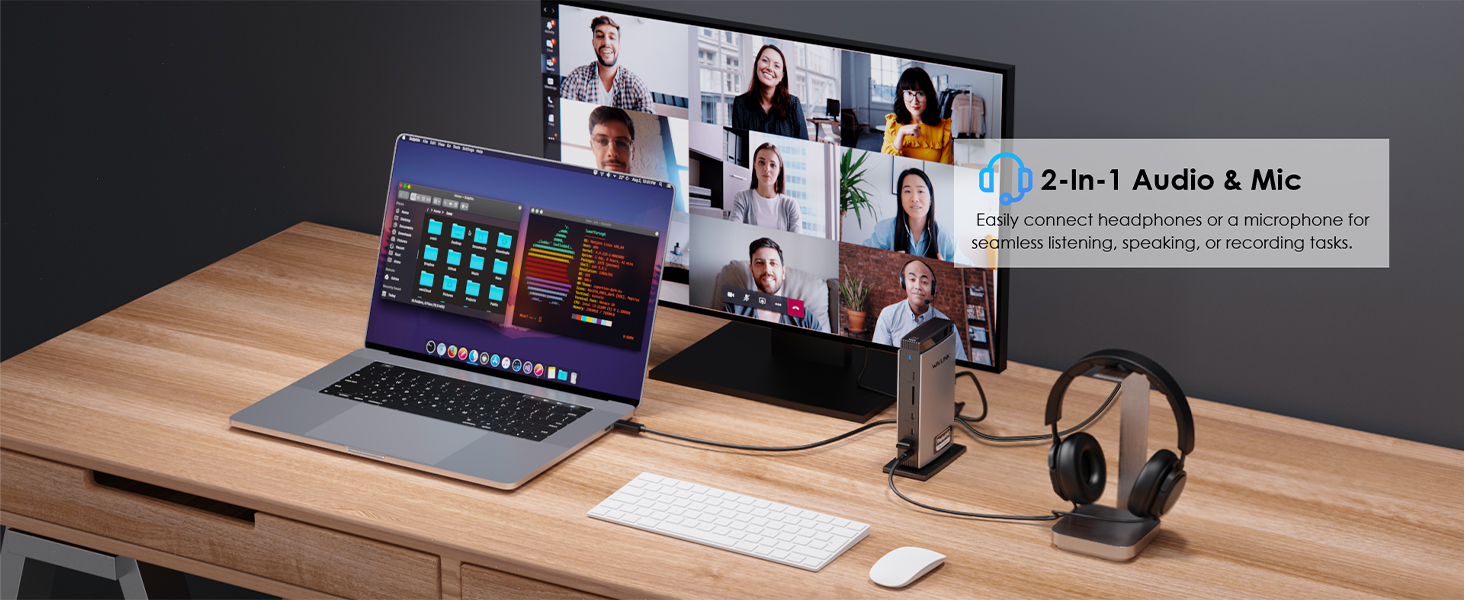
15 Ports Expand Your Options: All through a single USB C-C connection, the dock easily turns your laptop's type-c port into 3 HDMI ports, 2 DisplayPort, a host USB-C port, 2 USB-C ports, 3 USB-A ports, an RJ45 ethernet port, SD/TF card slots, and a 4-pole phone jack. A perfect solution for your home or office workstation. Attention: HDMI (Alt. Mode) requires your laptop's type-C port to support video output.
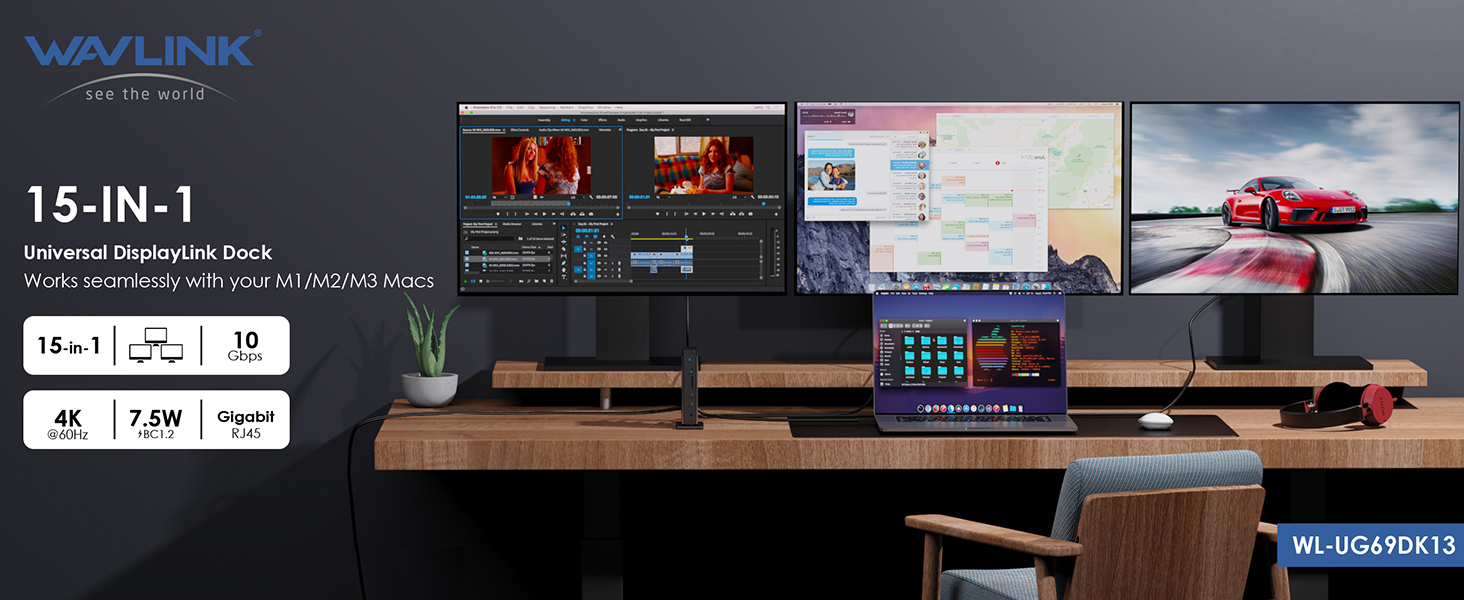
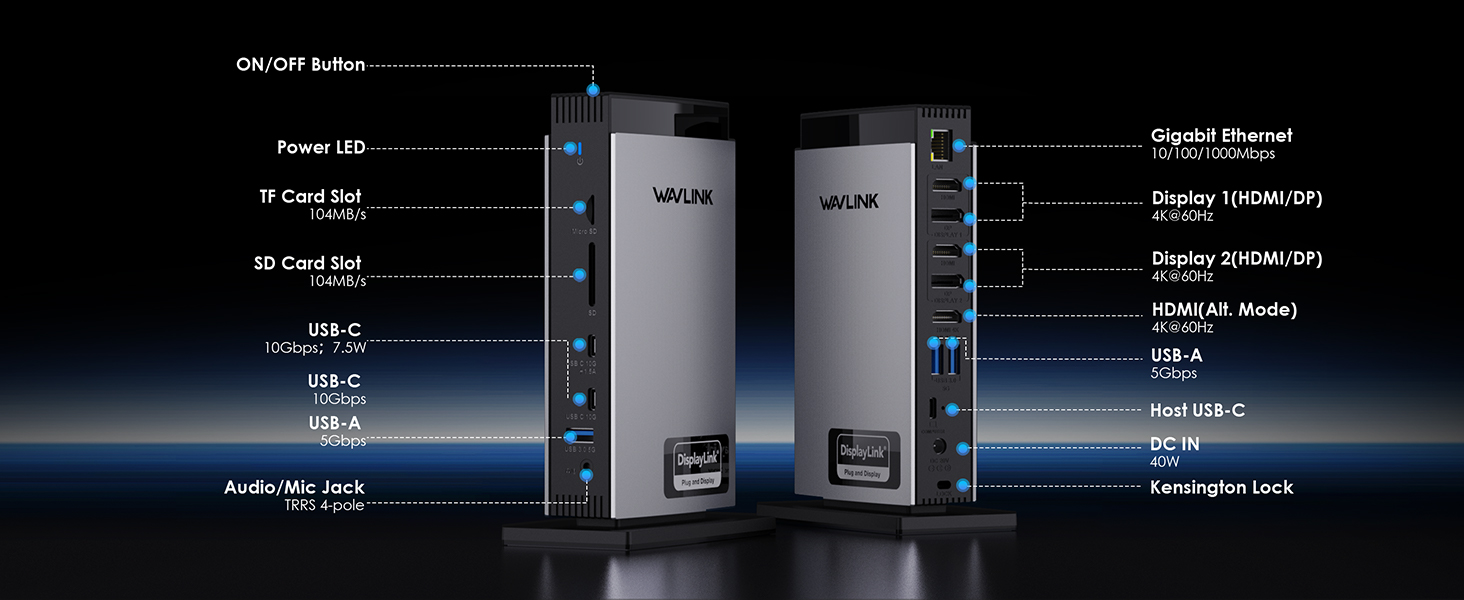
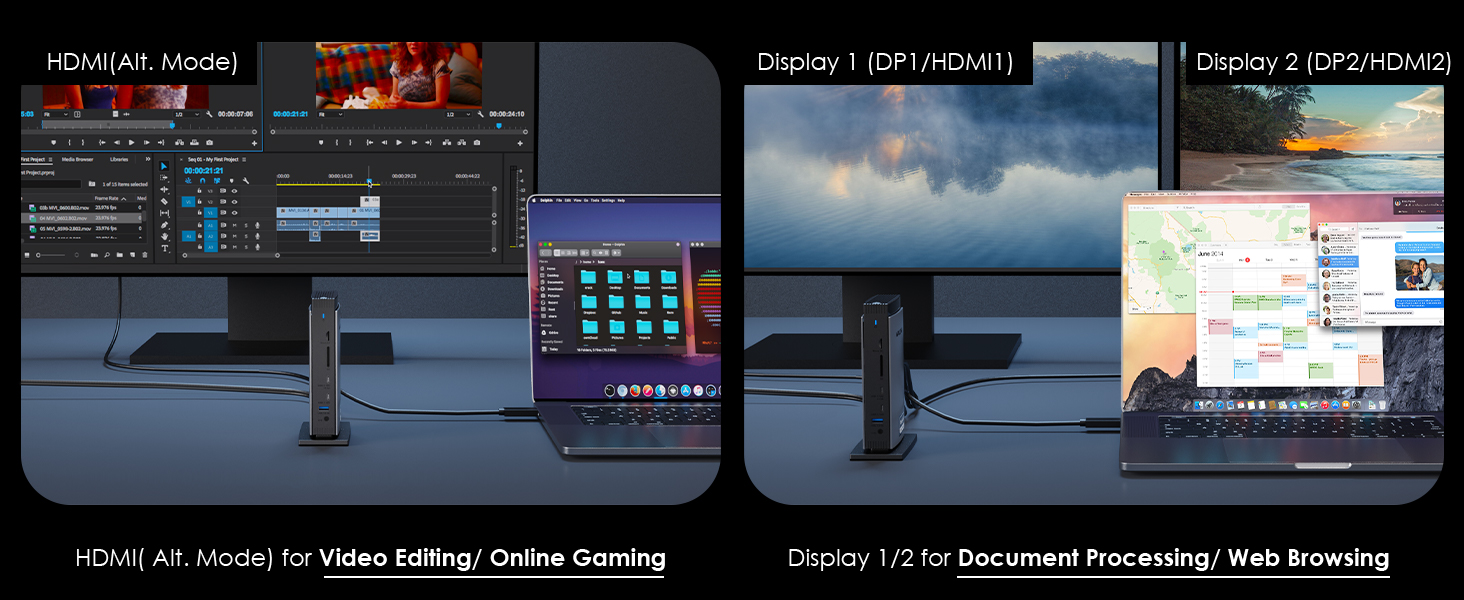
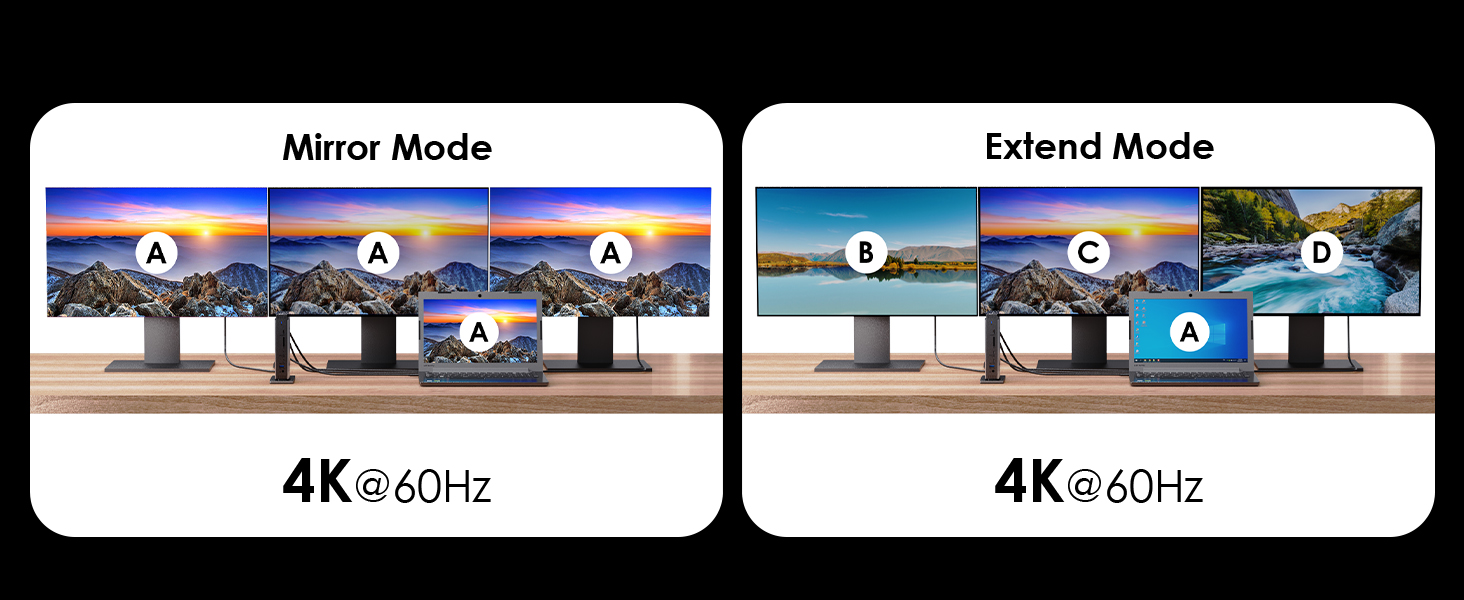
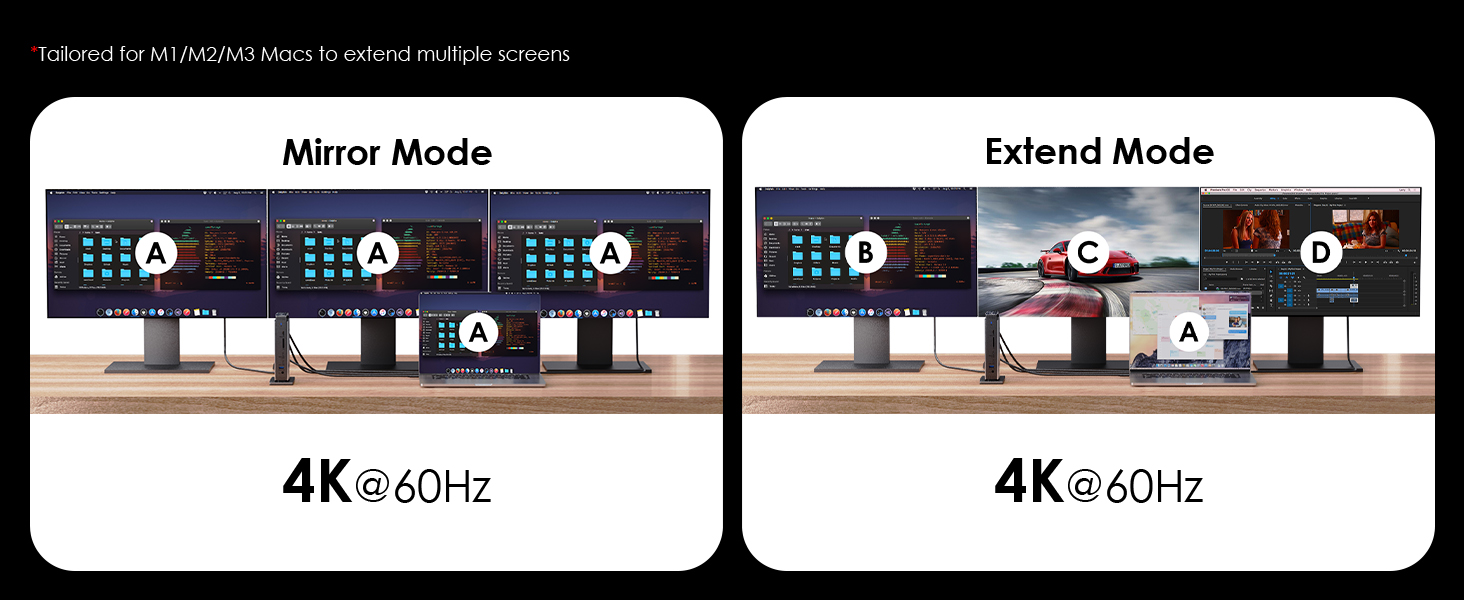
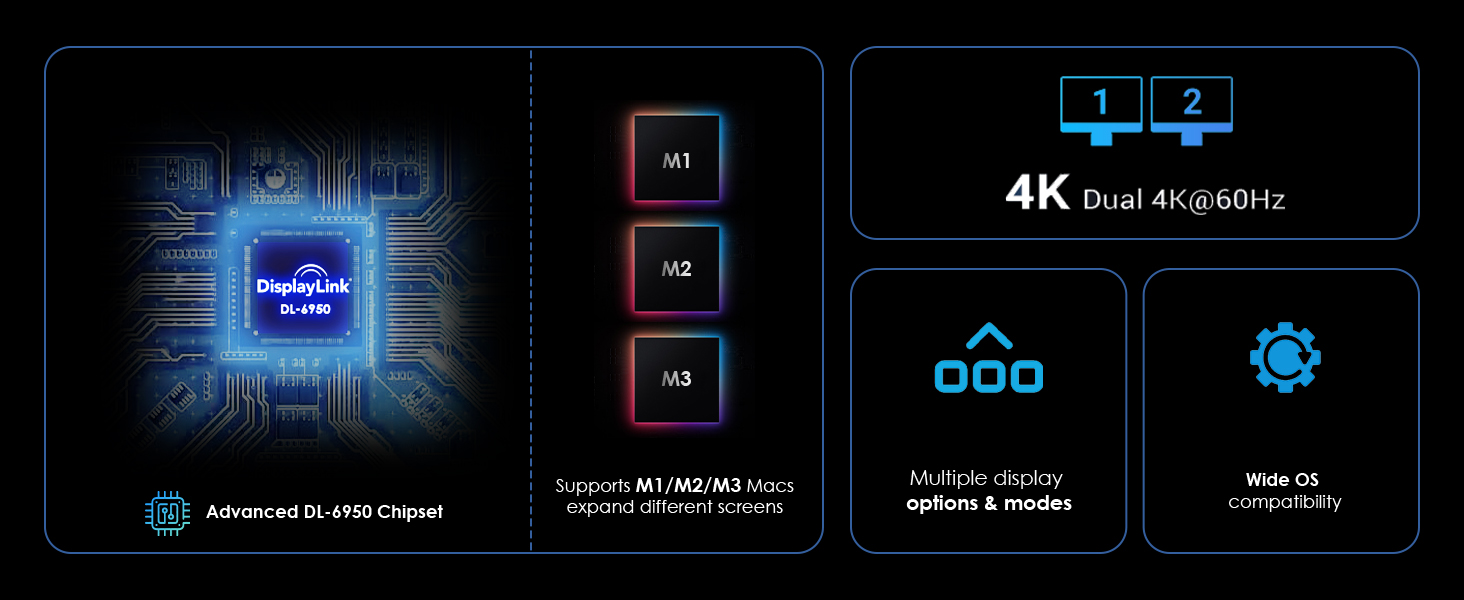
Boost Productivity with Multitasking: Connect triple 4K monitors with ease! Experience exceptional 4K@60Hz output on the HDMI (Alt. Mode) port for tasks like video editing and gaming. The DisplayLink-6950 chipset enables dual 4K@60Hz displays on the DISPLAY 1/2 (HDMI/DP) ports, perfect for expanding display options on M1/M2/M3 Macs. Great for web browsing and productivity applications; not recommended for gaming-intensive use.
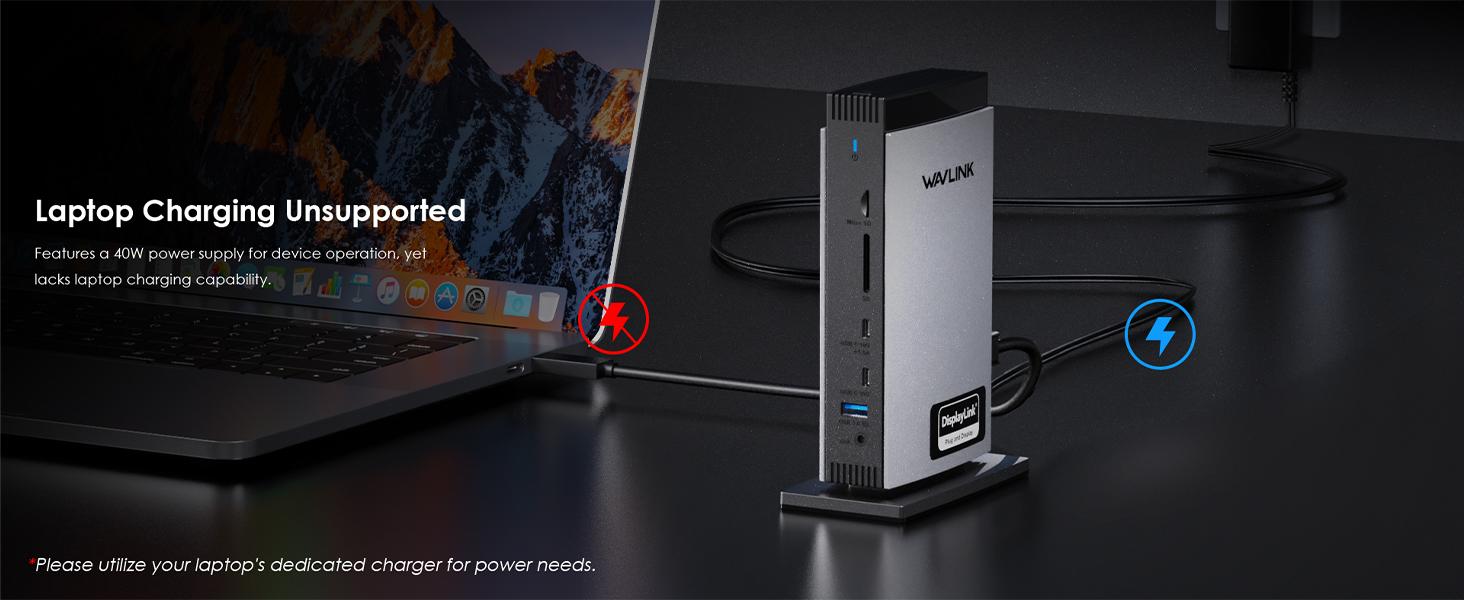
Adequate 40W DC In Power: This docking station includes a 40W DC input power adapter which ensures there's enough power to run all connected peripherals efficiently during data transfer or display usage, keeping your workstation operational without depleting your laptop's power reserve.  Remember: Laptop charging is not supported by the dock.
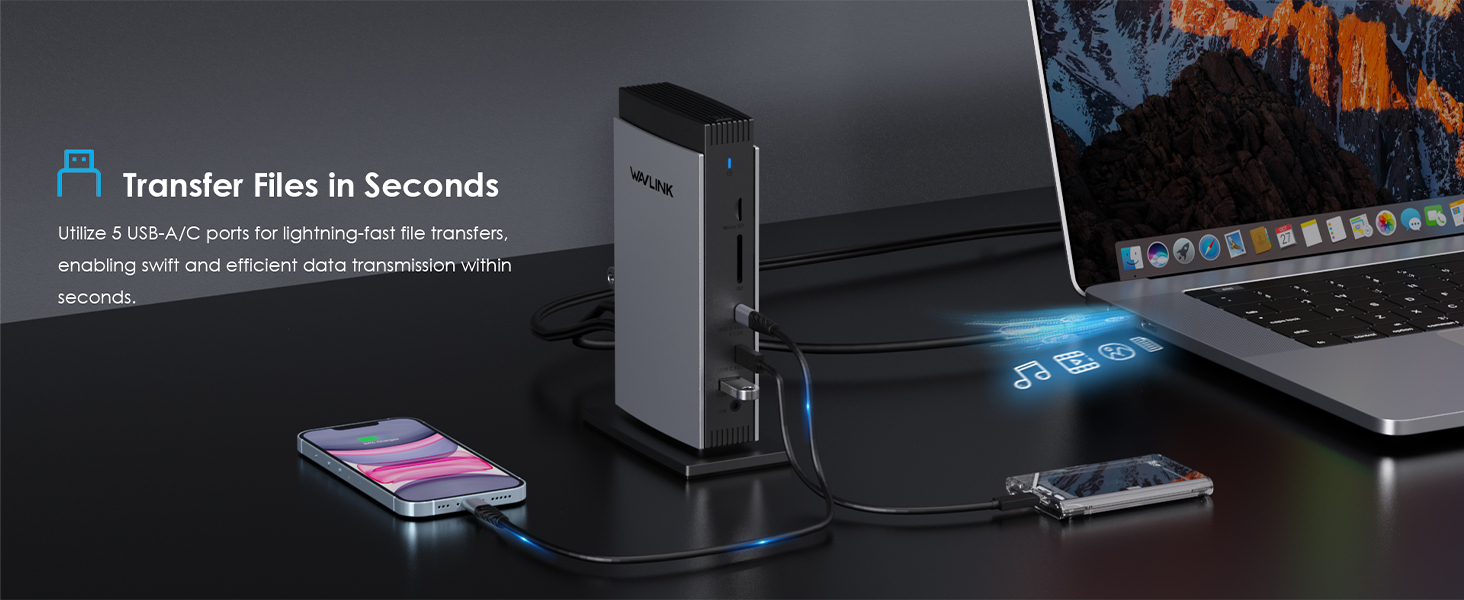
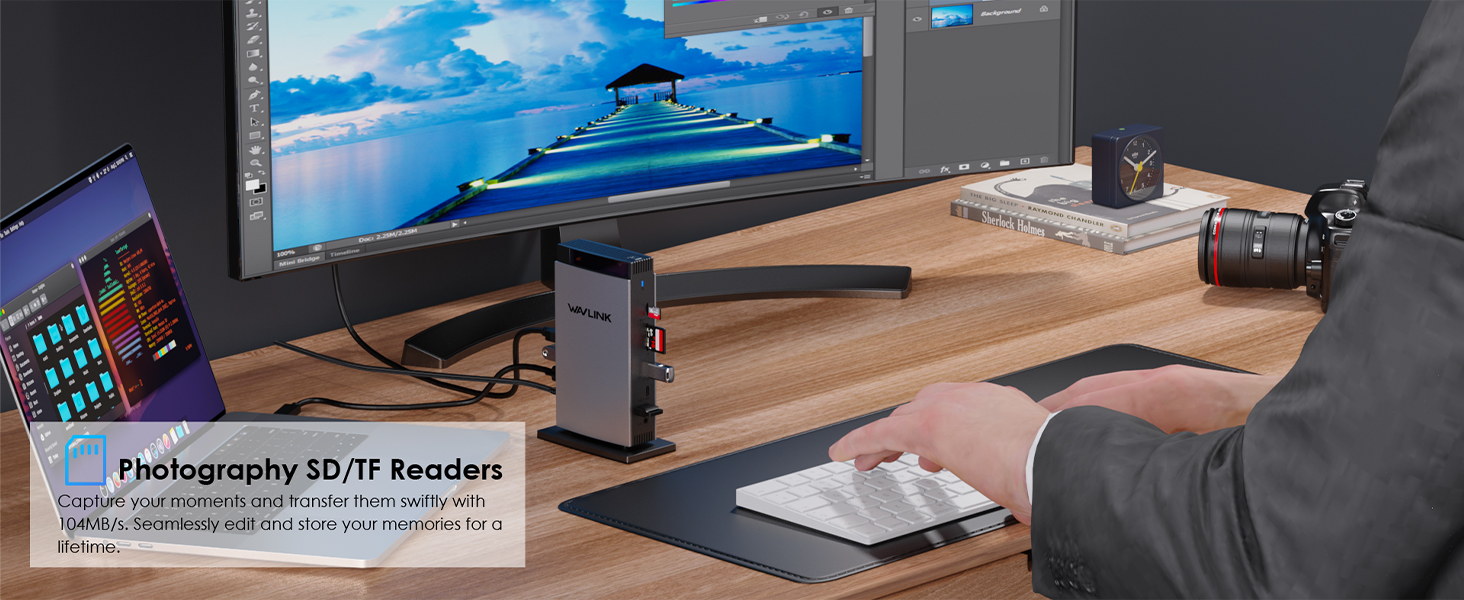
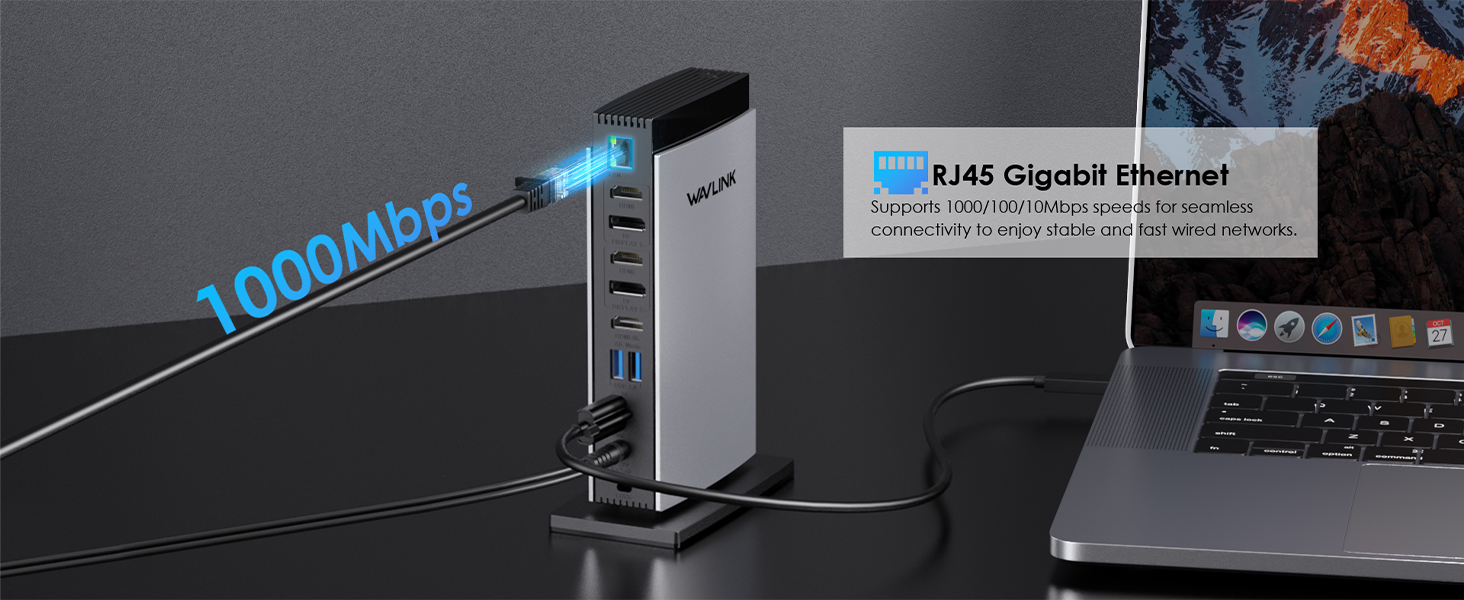
Super-Speed Transfer & Stable Network: Enjoy quick file transfers with 3 USB-A 5Gbps and 2 USB-C 10Gbps ports, perfect for connecting external hard drives and USB devices. The SD/TF card slots offer fast transfer speeds of up to 104MB/s, ideal for photographers, designers, and filmmakers to store their work effortlessly. Stay securely connected with the gigabit RJ45 ethernet port, providing stable wired network performance.
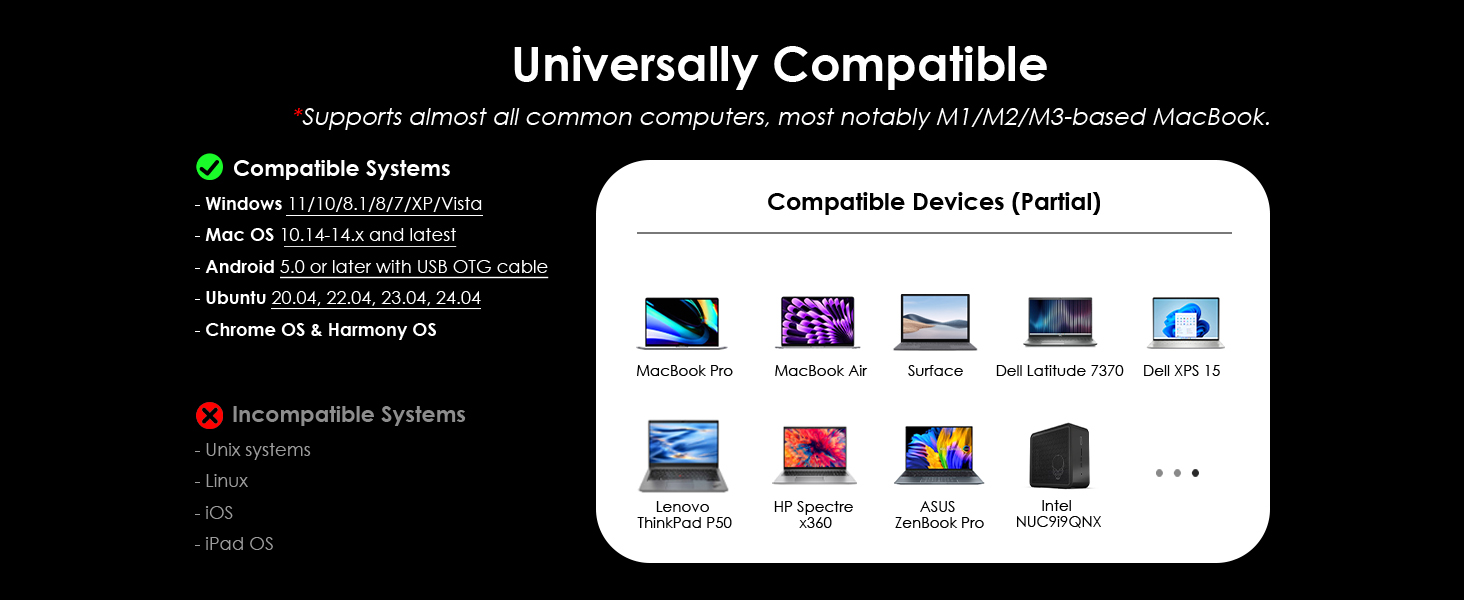
Wide Compatibility: Perfect for laptops with a full-function type-C port or thunderbolt 3/4 port. Support Windows 11/10/8.1/8/7/XP/Vista, Mac OS 10.14-14.x and latest, Chrome OS, Ubuntu, Android and Harmony OS. Not compatible with Unix systems, Linux, iOS and iPad OS. *Does not support plug and play; the installation of the latest DisplayLink driver is required.

Specifications

  • TECHNICAL SPECIFICATIONS
  • Model

    WL-UG69DK13

  • Ports

    Front Panel: 1x TF Card Slot, 1x SD Card Slot, 2 x USB-C 10Gbps, 1 x USB-A 5Gbps, 1 x 4-Pole Phone Jack;Rear Panel:  1x RJ45(10/100/1000Mbps), 1 x Display 1(HDMI/DP), 1 x Display 2(HDMI/DP), 1 x 4K HMDI(Alt. Mode), 2 x USB-A 5Gbps, 1x USB-C (Host), 1x DC IN (20V/2A, 40W)

  • Unit Size

    12.2x6.6x18.5cm/4.8x2.6x7.3in (WxDxH)

  • USB-C to C Cable Length

    100cm/39.4in

  • Unit Weight

    570g/20.1oz

  • Housing Material

    ABS Plastic

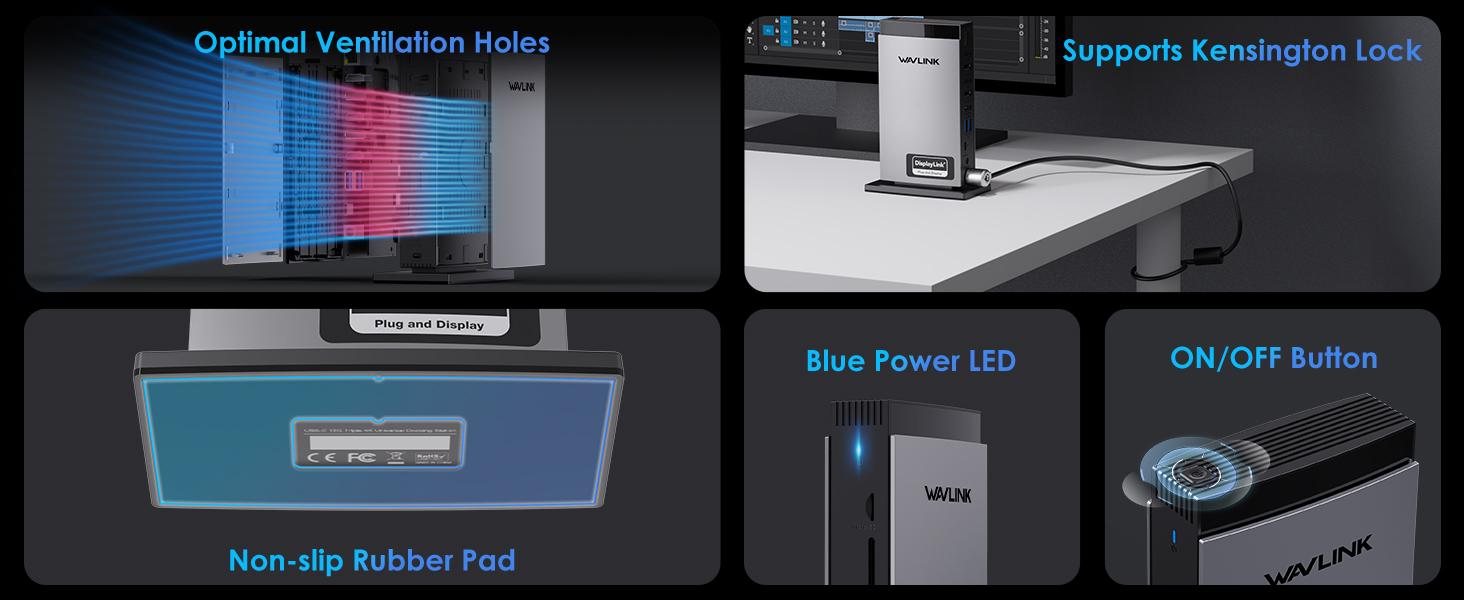
  • Power LED

    Blue

Driver

Version:
DL_Displaylink
System Requirements:
Windows 10/11/Mac/Linux/Android
Download:

Manual

WL-UG69DK13-Manuals

Description : WL-UG69DK13-Manuals

Post Date : 20/11/2025

Available : WL-UG69DK13

Download : German

Q&A

What should I do if the video ports of the docking are not working?

Please ensure that the DisplayLink driver for the dock is installed.

For macOS: Make sure you have installed the DisplayLink Manager App and granted permission for Screen Recording.

You can download the driver here :

DisplayLink macOS Software for Downloads Section | Synaptics

What should I do if the dock is not working as expected on a Windows computer?

Please follow the steps below:

1. Disconnect the dock from your computer and unplug the power cable to fully power it off. Keep it disconnected until the final step.

2. Uninstall any DisplayLink software from Control Panel > Programs and Features (if present).

3. Download and run the DisplayLink Cleaner Tool:

DisplayLink Installation Cleaner for Windows | Synaptics

4. Restart your computer (even if not prompted).

5. Download and install the latest DisplayLink driver:

Windows Driver Downloads for Downloads Section | Synaptics


6. Reconnect the dock’s power first, then connect the dock to your computer.

If the device is not detected during installation, click “Skip” to complete the process, then restart your system again.

What should I do if the Alt Mode HDMI port of the dock does not work?

1.Your computer’s USB-C port must support DisplayPort Alt Mode (video output) for the external monitor to function through the dock. To verify this,you could contact the laptop/pc manufacturer or contact our support team and tell us the detail model number of your laptop.

2.If the docking comes with a type-c cable,please make sure you should use the original type-c cable.

Why does the DisplayLink Manager App request screen recording access on my MacBook?

macOS requires users to grant Screen Recording permission for the DisplayLink driver to function properly. The DisplayLink Manager App does not send any information to Wavlink or DisplayLink/Synaptics, so there is no need to worry.

Why can’t Apple TV, Hulu, or Netflix play when the docking station is connected?

1.The docking station does not support HDCP, so protected content from services like Apple TV, Hulu, and Netflix cannot be played while the dock is connected. This is expected behavior. Please disconnect the dock when playing these videos.

2.Alternatively, you can try

1)  Open Google Chrome settings.

2)  Click on "Advanced" and select "System."

3)  Disable "Use hardware acceleration when available"

4)  Select "Relaunch" to activate the new settings.

Top

Get the Scoop First

Subscribe to our official website to receive exclusive first-hand news and stay up-to-date on our new product releases and promotions!